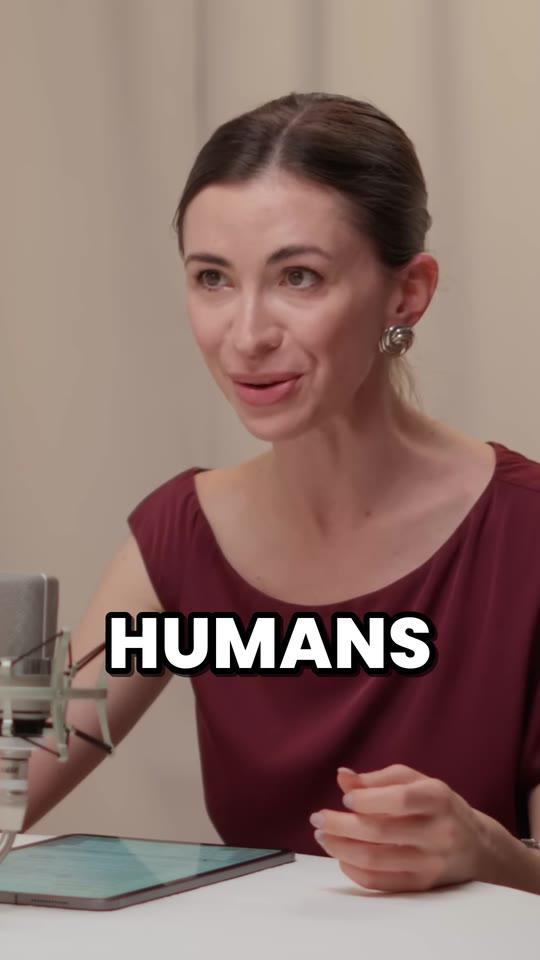
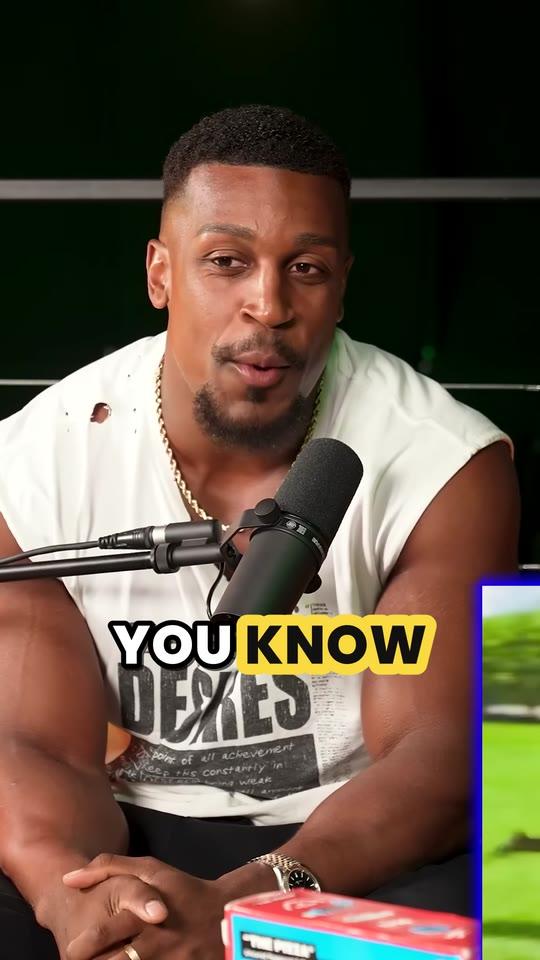
How Clyper works
How Clyper turns a long video into clips worth posting
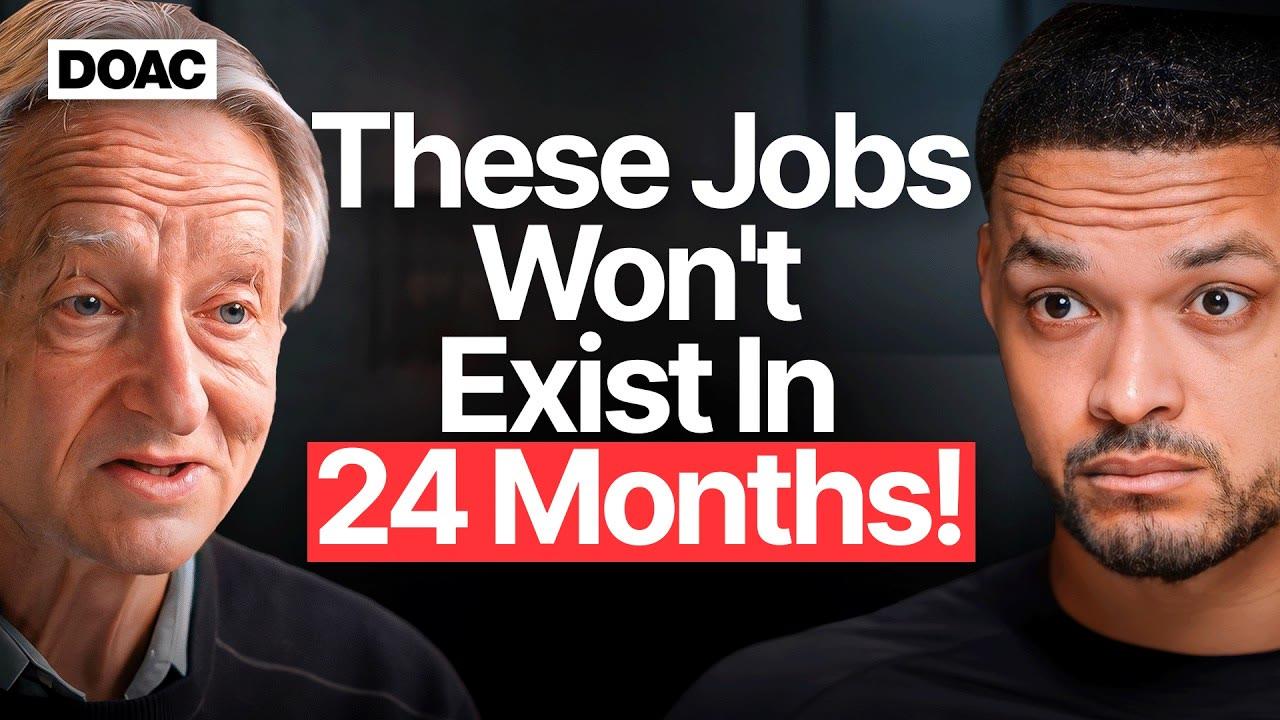
Seven steps, from the link you paste to MP4s ready for TikTok, Reels and Shorts. Here's what happens at each one, with the clips Clyper made from a 1:30:07 episode of The Diary Of A CEO as the example.
- Up to 4 hours a video
- Up to 30 clips
- No watermark
Step 01
You add a video
Paste a link to a public or unlisted YouTube video (a saved live stream or a Short too), a Twitch VOD, or a video file shared from Google Drive or Dropbox, or upload an MP4, MOV, WebM or MKV. There's no channel to connect, so any public video works, including the ones a clipping campaign gives you.
Clyper clips from 1 minute up to 4 hours at a time, and you can give a From and To time to clip just part of a longer video. Then choose how many clips you want, up to one for every 2 minutes of video and 30 in all, or leave it on Auto, and pick a caption style.
Step 02
Clyper reads the whole video
From a YouTube link, it fetches the sharpest version there is, up to 1440p, and turns down videos only available below 720p rather than make blurry clips. Then it reads the whole thing: the video's own captions where YouTube has them, or a transcript it makes from the speech, in the language it's spoken in (50+ languages).
That's also when the video is charged: a credit for each minute, at least 10 a video, whatever number of clips you asked for. If a video doesn't produce any clips, the credits come back.
Step 03
AI picks the moments and scores their hooks
An AI model reads the transcript the way an editor would and picks the moments that stand on their own: ones that open on a line people need the next one after, and end when the point lands. Most run 20 to 60 seconds. Each gets a title and a hook score from 0 to 100, for how strongly its opening holds attention.
It picks as many as you asked for, including weaker moments when you ask for more than the strongest fill, scored as such. On Auto, it picks about one for every 6 minutes of video, up to 10, and stops at the strong ones.
Step 04
Every clip is cut on whole sentences
From a YouTube link, Clyper downloads only the moments it picked, plus a few seconds either side, not the whole video. It times every word in them, then moves each cut to whole sentences: if a cut would land mid-sentence, it backs up to where the sentence starts and lets the last one finish. No clip opens on half a word or ends before its payoff.
If you extend a clip later in the editor, Clyper fetches just the extra seconds it needs, and times their words the same way.
Step 05
Framed on whoever's talking
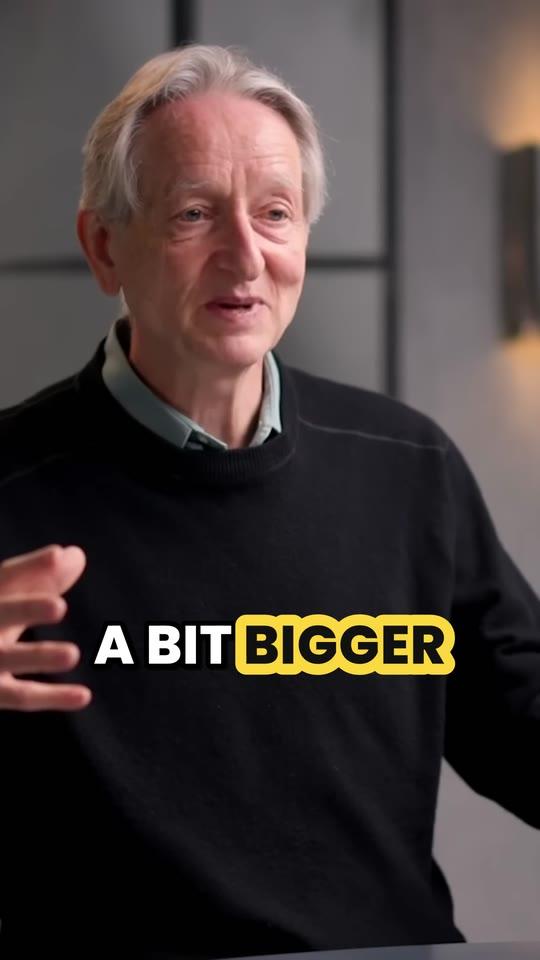
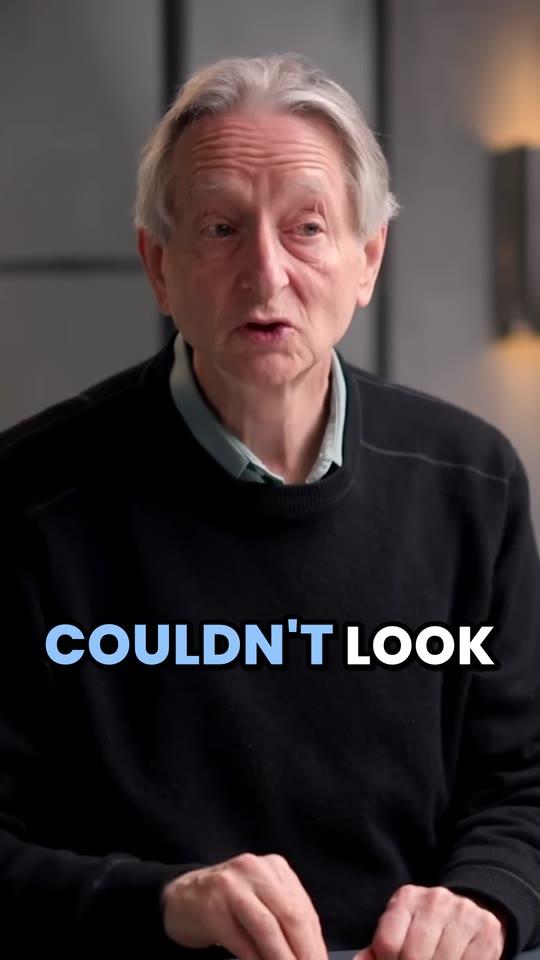
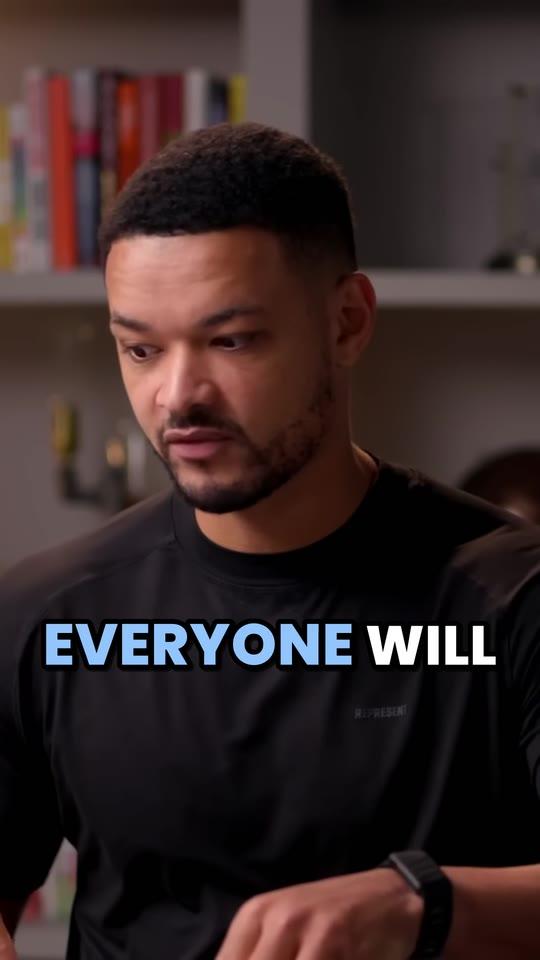
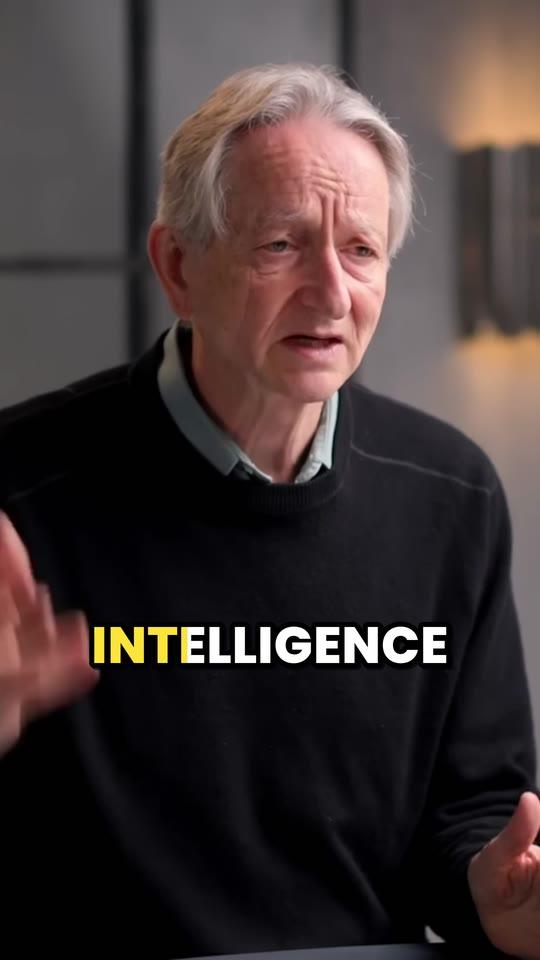
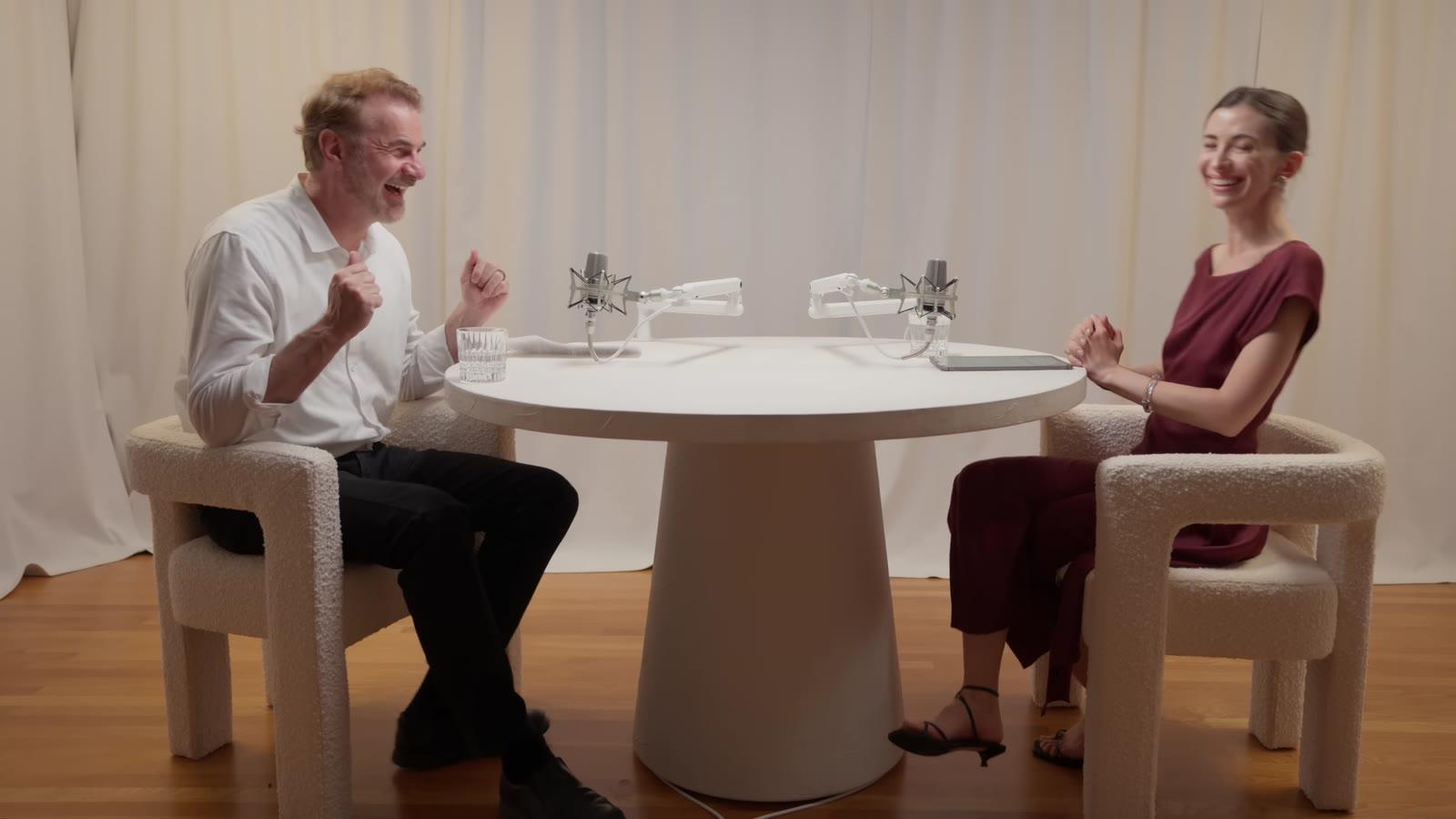
Each clip is cropped to vertical 9:16 by following the faces in it and whoever's speaking, moving between people as a conversation does, so a two-person podcast doesn't become a clip of an empty chair. A stream with a small webcam in a corner gets the split layout instead: the webcam on top, the middle of the game or screen below.
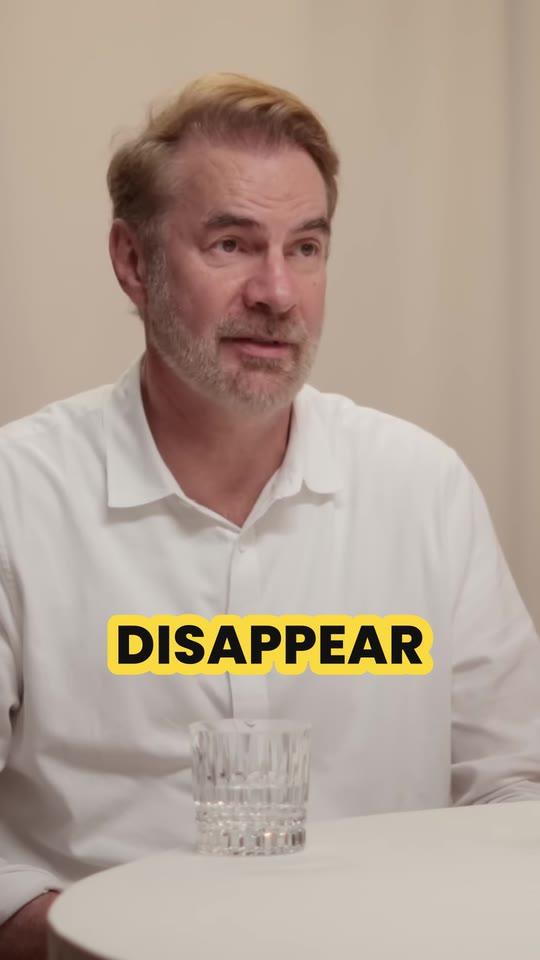
The framing is planned for a little more than the clip itself, so a clip you extend in the editor stays framed the same way. The picture shows where the crop sat on this frame, and the clip it made. More on auto reframe.
Step 06
Captioned and rendered, ready to post
Captions go on a few words at a time, timed to each word, in your chosen style: Pop, Karaoke, Highlight, One word, Plain. They're set in the video's own language and script, and placed above the usernames and captions TikTok, Reels and Shorts put over a video. Every clip is rendered at 1080 × 1920 with its loudness evened out, with no watermark on any plan.
On Pro and Studio, each clip can also open with its hook as a headline at the top for its first 4 seconds, and a brand kit keeps up to 10 caption styles of your own. Starter uses Pop. See every caption style.
Step 07
You check, adjust and post
The clips come sorted by hook score, so the strongest is first. Open any of them in the editor to trim it to the word, extend either end by up to 15 seconds, fix a caption word or switch the style. The preview updates as you go, and saving renders the clip again, up to 10 times a clip, without using credits.
Then download the MP4s and post them on TikTok, Instagram Reels and YouTube Shorts yourself. Clyper doesn't post for you or need your accounts. On Studio, paste up to 10 links at once and Clyper works through them in turn.
By hand, and with Clyper
What each step takes in a video editor, and what Clyper does instead.
| Step | By hand | With Clyper |
|---|---|---|
| Finding the moments | Watch or scrub the whole video | Reads the whole transcript and picks them |
| Choosing what to post first | Guess | A hook score from 0 to 100 on every clip |
| Cutting | Find each start and end by ear | Cut on whole sentences, by the word |
| Framing for vertical | Keyframe a crop by hand | Follows whoever's talking; split layout for streams |
| Captions | Type or fix them, then style them | Word by word, in 5 styles and 50+ languages |
| Exporting | One clip at a time | Every clip as a 1080 × 1920 MP4, no watermark |
Want to see the results first? Browse the clip examples, each with its hook score.
What Clyper doesn't do
It does one job: turning a long video people talk in into short clips, ready to post. So it isn't the tool for:
- Making videos from a script or images with AI: it clips real footage.
- Music videos or silent footage: it finds moments in what people say.
- Posting for you: you download the clips and post them yourself.
- Full timeline editing: its editor trims or extends each clip, fixes caption words and changes the style.
How it compares with the other AI clipping tools: the best AI clipping tools, ranked.
What it costs
A credit is a minute of video, so a plan is how much video you can clip in a month, however many clips it makes.
Starter
$20/mo
200 minutes, about 100 clips
Pro
$19/mo yearly
600 minutes, about 300 clips
Studio
$48/mo yearly
2,000 minutes, about 1,000 clips
Also as 2× or 4×, for more of both
Questions about how it works
How does Clyper pick the best moments?
An AI model reads the video's whole transcript and picks the moments that work on their own: ones that open on a strong line and end on a payoff, about 20 to 60 seconds long. Each gets a title and a hook score from 0 to 100, so you can post the strongest first.
Does Clyper cut clips in the middle of a sentence?
No. It times every word and moves each cut to whole sentences: back to where the first sentence starts, and on until the last one finishes. In the editor, trims and extensions snap to word boundaries too.
How does Clyper turn a horizontal video into a vertical clip?
It crops each clip to 9:16 by following the faces in it and whoever's speaking, moving between people as the conversation does. Streams with a small webcam in a corner get a split layout instead, with the webcam on top and the game below.
Do I need to connect my YouTube channel?
No. Paste any public or unlisted YouTube link, a Twitch VOD, or a Google Drive or Dropbox link, or upload a file. Clyper never posts anything; you download the clips and post them yourself.
What languages does Clyper work in?
50+. It transcribes and captions each video in the language it's spoken in, with fonts for each script, and its captions work in every style.
How many clips does Clyper make from one video?
As many as you choose, up to one for every 2 minutes of video and 30 in all. On Auto, about one for every 6 minutes, up to 10. A credit is a minute of video however many clips you ask for.
What if Clyper doesn't find any good moments?
If a video doesn't produce any clips, you get its credits back.
Run it on your video
Paste a YouTube, Twitch, Google Drive or Dropbox link, or upload a file. Clyper picks the moments, cuts them on whole sentences, frames the speaker and captions every word: up to 30 clips, each with its hook score.
See plans and pricing