Split screen video maker
Stack two videos, or two parts of one, in a single 1080 × 1920 video for TikTok, Reels and Shorts: a streamer's webcam over the game, two people talking, or a clip over gameplay. Free, no watermark, and nothing is uploaded.
0:00 / 0:00
An example: 8 seconds of IMPAULSIVE
Your video
MP4, MOV or WebM, or drop one on the phone. It's made on your device: nothing is uploaded.
1080 × 1920 MP4, no watermark. Free, and nothing to sign up for.
How to make a split screen video
- Pick what you're making: a stream with a webcam, two people talking, or a clip over gameplay.
- Choose your video, or drop it on the phone. For a clip over gameplay, choose the gameplay too.
- Place the boxes. Drag box 1 onto what the top panel shows and box 2 onto the bottom's, and drag a corner (or use the zoom) to show more or less.
- Choose the part, up to 5 minutes, and make the video. Then download your 1080 × 1920 MP4.
Three layouts that work on a phone
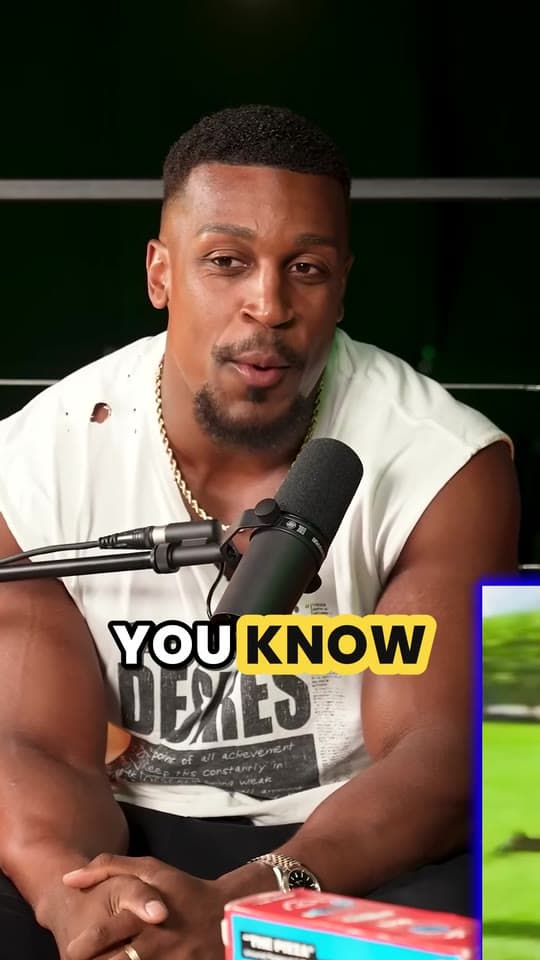
Webcam and game. A stream squeezes the streamer into a corner, and cropping the whole frame to 9:16 loses either them or the game. Stacked, the face gets the top 608 pixels, a 16:9 strip like the webcam itself, and the game fills the rest, where the action stays big enough to follow. Clyper lays out whole streams this way: see stream clips.
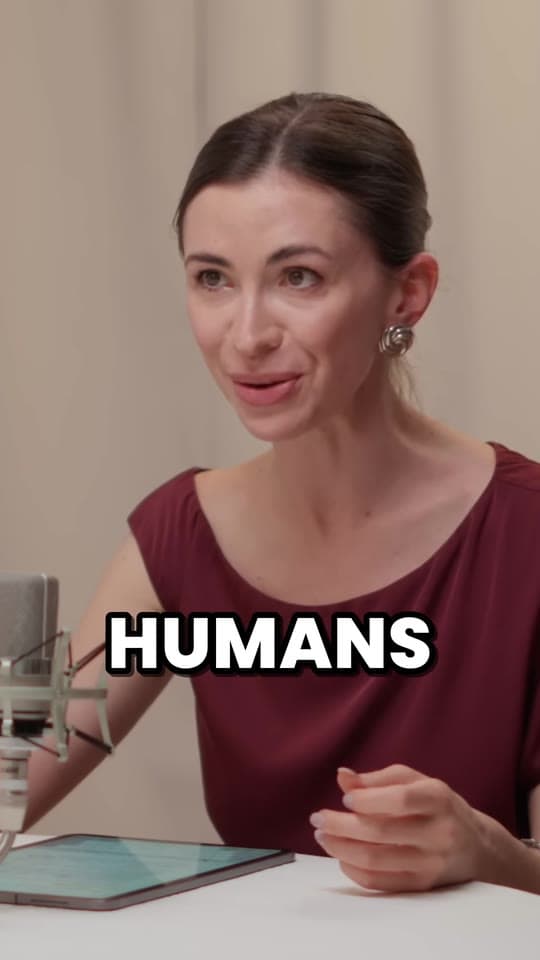
Two people. In a podcast or interview filmed wide, the guests sit too far apart for one vertical crop. Give each their own half, and both stay on screen as they talk to each other.
Clip over gameplay. Some clippers put muted gameplay under a talking clip to give the eye something to follow. Whether it helps depends on the clip and the audience, so test it against the plain clip before you make it your style. If you post on your own TikTok for its Creator Rewards Program, know that TikTok lists split screens among what it counts as low quality there.
Getting it right
Leave headroom on the webcam. Frame the face in the top half of its box, with some space above it, so it isn't squashed against the top of the screen.
Keep the action in the middle. For shooters and most games, the crosshair and what's happening are in the middle of the frame; menus and maps at the edges matter less.
Mind the buttons. The apps lay their buttons and captions over the bottom and right of the screen. Check what they'd cover with the safe zone checker, and put captions on the seam between the two panels, where they cover neither the face nor the game.
Use footage you're allowed to use. A clip of someone else's stream needs their permission, like a clipping campaign gives, and so does gameplay that isn't yours. More in how to clip streams.
Questions
How do I make a split screen video for TikTok?
Choose what you're making (a stream, two people, or a clip over gameplay), choose your video, drag the two boxes onto what each half should show, and make the video. You get one 1080 × 1920 MP4, the size TikTok, Reels and Shorts fill the screen with.
How do I put a webcam over gameplay?
Choose "Webcam and game", then drag the top box onto the webcam and the bottom box onto the middle of the game. The webcam gets a 1080 × 608 panel, the shape of most webcams, and the game the 1312 pixels below it.
How do I put gameplay under a clip?
Choose "Clip over gameplay", then your clip for the top and the gameplay for the bottom. The gameplay plays muted and starts again whenever it runs out, so it can be shorter than your clip. Use gameplay you recorded yourself, or footage you have permission to use.
What size is each half?
Each panel is the full 1080 pixels wide. Split evenly, both are 1080 × 960. With a small top, the top is 1080 × 608 (16:9) and the bottom 1080 × 1312; a large top swaps them.
Do split screen videos earn on TikTok's Creator Rewards?
TikTok's Creator Rewards Program lists split screens among the things it counts as low quality, so they may not earn from it. Clipping campaigns set their own rules: check the campaign's before you post.
Is my video uploaded anywhere? Is there a watermark?
Neither. Your browser reads the videos, lays them out and saves the new file, all on your device, and the video has no watermark.
Can this be done automatically?
For streams, yes: give Clyper the YouTube link of a finished stream, and it finds the best moments, spots the webcam, stacks it over the game and puts the captions on the seam between them, for up to 30 clips. For podcasts and interviews, it keeps whoever's talking in the frame instead.
Stream clips, laid out for you
Paste the YouTube link of a finished stream. Clyper finds the best moments, puts the webcam over the game and captions every word: up to 30 clips, ready to post.
Guides
- Making clipsHow to clip streams for TikTok, Reels and ShortsGetting the stream, finding the moments in hours of it, the webcam-over-game layout and posting the clips.6 min read
- Making clipsHow to make gaming clips for TikTok, Shorts and ReelsSave the moment on any PC or console, lay it out for a phone with your facecam, caption it and post it.12 min read
- GrowingHow to grow on Twitch and get more viewersHow viewers find streams on Twitch now, what to stream and when, growing off Twitch with clips, and reading your analytics.12 min read
More free tools
- Vertical video converterTurn a horizontal video into a 1080 × 1920 one for TikTok, Reels and Shorts, cropped or fitted, without uploading it.
- Crop videoCrop a video to any shape, 9:16, 1:1, 4:5 or your own, by dragging a box over it, without uploading it.
- Add text to videoPut a title, a hook or a label on a video, styled the way clips are and placed clear of the apps' buttons, as an MP4 with no watermark.
- Add watermark to videoPut your @handle or logo on a video, see-through, in any corner or moving between them, clear of the apps' buttons.
- Rotate videoTurn a sideways or upside-down video the right way up, or flip it, in seconds and without uploading it.
- Add captions to videoBurn captions into a vertical video, word by word in the styles clips use: transcribed from its speech, or from an SRT or VTT file.
- Auto caption generatorTurn a video's speech into timed captions in your browser: edit them, download SRT or VTT, or burn them into a vertical video.
- SRT to VTT converterConvert subtitles between SRT and VTT, shift their timing, or turn them into plain text, in your browser.
- Video to text converterTranscribe a video or audio file into text with timestamps, in your browser, and copy or download it.
- Video compressorMake a video smaller to fit Discord, an email or any size you pick, as an MP4, without uploading it.
- MP4 converterTurn MOV, MKV, WebM and other videos into MP4, several at once, without losing quality when the formats allow, and without uploading them.
- Video trimmerCut a video down to the part you want, at the same size and quality, in your browser and without uploading it.
- Video splitterSplit a video into parts: every 30 or 60 seconds, into equal parts, or where you mark it, kept as it is or 9:16 and numbered.
- Merge videosJoin clips into one video, in the order you choose, fitting clips of other shapes on a blurred background, black bars or a crop.
- TeleprompterRead your script on camera: it scrolls at your speaking pace, pauses when you do, and can record you with your camera.
- Speed up videoSpeed a video up or slow it down, from 0.25× to 4×, keeping the voice's pitch, and download the MP4. Works on audio too.
- Video to GIF converterTurn a few seconds of a video into a GIF, at the size and smoothness you pick, in your browser.
- Remove background noise from videoTake fans, hum, traffic and room noise out of a video's sound (or a sound file's) and keep the voice, on your device.
- Increase video volumeMake a quiet video louder: it's measured in LUFS and brought up to -14 LUFS, a common level for social video, without distorting.
- Bleep censorBleep the swearing out of a video or podcast: it's transcribed on your device, the swear words found, and each one bleeped.
- Add music to videoPut a song under a video's sound: set the volumes, fade it, loop it, and let it dip when someone talks. Download the MP4.
- Video to MP3 converterSave a video's sound as an MP3, M4A or WAV, all of it or just a part, in your browser and without uploading it.
- Audiogram makerTurn a podcast's audio into a video: its cover, a waveform that moves with the sound and captions from the speech, as a 9:16, square or 16:9 MP4.
- Remove audio from videoTake the sound out of a video, keeping the picture exactly as it is, in seconds and without uploading it.
- Remove silence from videoCut the pauses out of a talking video or podcast automatically: hear it without them first, then download a tighter MP4.
- Video size checkerCheck a video's shape, size, length and format against what TikTok, Reels and Shorts take, and see what to fix.
- Safe zone checkerCheck your clip against TikTok, Reels and Shorts' buttons and captions before you post.
- YouTube thumbnail makerMake a 16:9 thumbnail from a frame of your video: a bold title, your face on top, and a preview the way YouTube shows it.
- Shorts thumbnail makerMake a 9:16 cover for a Short, a TikTok or a reel: a frame of your video with a bold title, at the sizes the apps suggest.
- YouTube clip makerClip any moment of a YouTube video by its start and end, and share it as a link, an embed or its timestamps.
- YouTube timestamp generatorMake chapters for a YouTube description: mark them as the video plays or from its transcript, checked against YouTube's rules.
- YouTube thumbnail downloaderGet any YouTube video's thumbnail in every size YouTube keeps, up to 1280 × 720, from its link.
- Aspect ratio calculatorFind any size's aspect ratio, a new width or height at the same ratio, and the crop for 9:16, 1:1 or 4:5.
- Clipping earnings calculatorSee what your clips could earn on campaigns that pay per 1,000 views, by the day, month and year.
- YouTube Shorts money calculatorSee what YouTube Shorts pay for your views, from the ad revenue Shorts share with creators in the Partner Program.
- TikTok money calculatorSee what TikTok's Creator Rewards Program could pay for your views, per 1,000 qualified views.
- YouTube money calculatorSee what your YouTube videos could earn from ads, per 1,000 views, by the month and the year.
- YouTube watch hours calculatorSee how many watch hours your views make and how long until you reach YouTube's 4,000 for monetization.
- Engagement rate calculatorWork out a post's engagement rate on TikTok, Instagram or YouTube, by views and by followers, against typical rates.
- Hook generatorGet opening lines for your clips from formulas that keep people watching past the first second.