Video clipper
Cut a long video into clips at the moments you choose: mark each one as it plays, or paste a list of timestamps. Keep the clips as they are or make them 9:16, and download each one or all of them in a ZIP. It runs on your device, so nothing is uploaded.
A free tool from Clyper, the AI clipping tool that turns long videos into captioned vertical clips.
Get startedClips
2 of up to 50
- 1StartEnd2 s
- 2StartEnd6 s
MP4, MOV, WebM or MKV, of any length, or drop one on the player. It's cut on your device: nothing is uploaded.
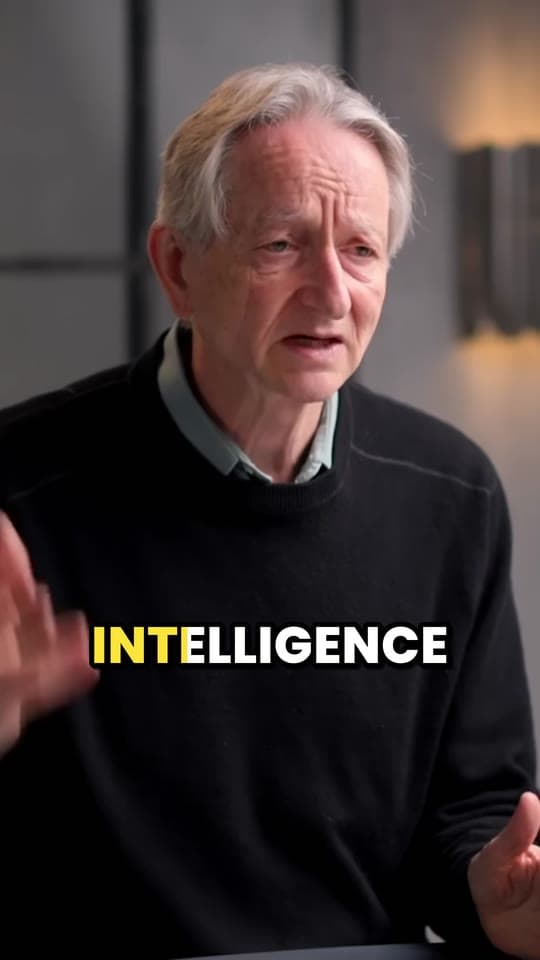
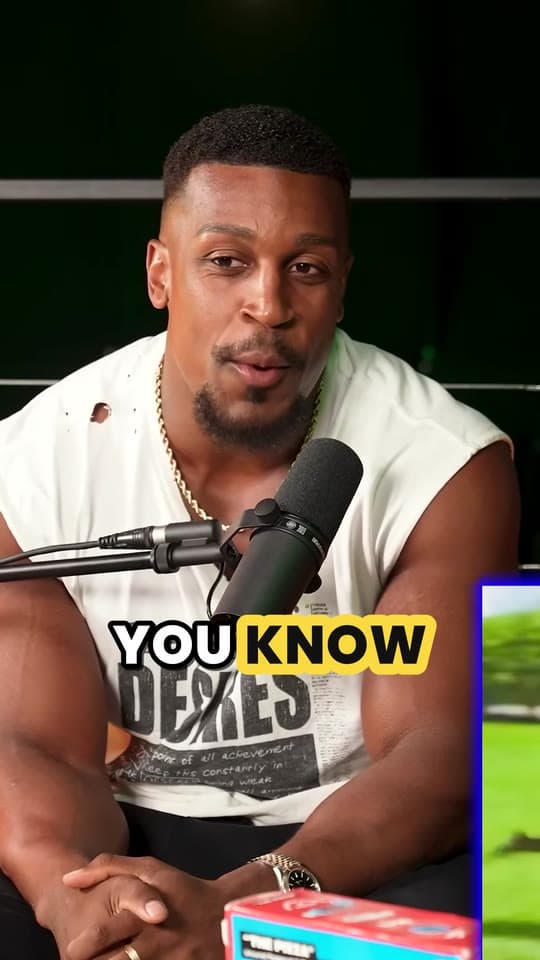
An example: 8 seconds of IMPAULSIVE
Free, no watermark, nothing to sign up for. Download each clip, or all of them in a ZIP.
How to cut a video into clips
- Choose your video, or drop it on the player: a podcast episode, a stream, an interview, any length. MP4, MOV, WebM and MKV work.
- Mark each clip. Play the video (the arrows skip 5 seconds), press Now beside Start where the moment begins and beside End where it ends, then press Add clip. Drag the ends of the bar to adjust, and do the same for the next moment.
- Or paste the times. A list from a chatbot, YouTube comments or your notes goes in the box under the player, one clip a line, and Add puts them all in the list at once.
- Check the list. Name each clip, play it, and move its start or end a second at a time with the minus and plus buttons, or type a time.
- Choose the shape and cut. As it is copies each clip without re-encoding; 9:16 crop fills a phone's screen and 9:16 fit keeps the whole picture on a blurred copy of itself. Then download the clips one by one, or all at once in a ZIP.
Cutting clips from a list of timestamps
The box reads times however they're written: with a dash or “to” between them, in brackets, after a number or a bullet, with hours or without. Whatever is left on the line becomes the clip's name, and a line with no name gets Clip 1, Clip 2 and so on.
| You paste | You get |
|---|---|
12:30 - 13:15 The story | 12:30 to 13:15, named The story |
1:02:03-1:03:10 | 1:02:03 to 1:03:10, named by its place in the list |
Start: 12:30, End: 13:15 | 12:30 to 13:15 |
12:30 the part where he laughs | A 30 second clip from 12:30, to set the end of |
12m30s to 13m15s | 12:30 to 13:15 |
13:15 - 12:30 | Listed under the box: it ends before it starts |
A chatbot's answer can go in whole: a heading on the line above the times names that clip, and lines without times, like its reasons, are left out. To get a list from a transcript, see how to use ChatGPT to find clips. The video highlight finder finds the liveliest moments of a recording by its sound, and its Copy timestamps button gives a list this box reads.
How the clips are made
Kept as it is, each clip is copied straight out of your file, without re-encoding. That's why it takes seconds even for a long video, and why the clip looks and sounds exactly like the original. A video file keeps a full picture, a keyframe, every second or few, and only the changes in between, so a copied clip starts from the keyframe before your start, with a mark that tells players to skip to your start. Most players do; if an app you post to shows a second or two of extra picture, start the clip at a pause, or make it 9:16.
Made 9:16, each clip is redrawn frame by frame at 1080 × 1920 and re-encoded, from the exact second you set. 9:16 crop keeps a slice of the picture the height of the frame (slide it to the person talking); 9:16 fit keeps all of it, on a blurred copy that fills the screen. Re-encoding in a browser takes about as long as the clips play, so it works on up to 30 minutes of clips at a time.
Either way the work happens on your device, so the video never leaves it, and the clips are saved as MP4 (WebM only for a WebM video kept as it is, or where a browser can't make MP4). Clips can overlap: a 30 second cut and a 60 second cut of the same moment are two clips.
Choosing where each clip starts and ends
- Start on the line that hooks. People decide in the first second or two whether to keep watching, so begin on the sentence that makes them want the next one, not on a greeting or a breath.
- End right after the payoff: the answer, the punchline, the point. Anything after it is where people scroll away.
- Cut between sentences. A clip that starts or stops mid-word feels broken. Play each one through and move its ends a second at a time until the first and last words are whole.
- Keep each clip to one idea that makes sense to someone who never saw the full video. If it needs five minutes of context, skip it. More in how to find the best moments to clip and how to make clips that go viral.
- Name the clips as you go. The names become the files' names, so a folder of 20 clips is easy to post from. Copy times keeps the list, to paste back in later.
| App | Longest clip | Good to know |
|---|---|---|
| YouTube Shorts | 3 minutes | Square or vertical, to count as a Short |
| Instagram Reels | 20 minutes | Reels over 3 minutes aren't recommended to new audiences. |
For how long a clip should be, rather than how long it can be, read how long a short video should be, and check a finished clip against each app with the video size checker.
Getting the long video
Your own recording is best: the file from your camera, OBS or your podcast studio is at its full quality. From YouTube, you can download a video you uploaded in YouTube Studio: Content, the video's menu, then Download. It comes as an MP4 at 720p or 360p, up to five times a day for each video.
Clipping someone else's show or stream? You need their permission, which clipping campaigns give. See how Clyper handles podcast clips, stream clips and YouTube to Shorts.
This clipper, or Clyper?
This free clipper cuts the moments you choose, where you set them. Clyper finds the moments itself, and does the rest of the work on each clip.
| Video clipper | Clyper | |
|---|---|---|
| Finding the moments | You watch, or paste a list of times | Reads the whole video and picks the moments that stand on their own |
| Where clips start and end | Where you set them, to the second | On whole sentences |
| Vertical | A fixed 9:16 crop, or the whole picture on a blur | Framed on whoever's talking, switching as they take turns |
| Captions | None | Every word, in 5 styles |
| The video | A file on your device, any length | A YouTube link, or an upload of up to 4 hours |
| Clips | Up to 50 at a time | About 10 from an hour on Auto, up to 30 a video when you ask |
Cutting by hand? Caption the clips with the auto caption generator and burn them in with add captions to video. For other jobs: the video splitter cuts a whole video into consecutive parts, the video trimmer keeps one part, and merge videos joins clips into one. For a YouTube video you can't download, the YouTube clip maker makes a link and an embed of a moment.
Questions
How do I cut a video into multiple clips?
Choose the video, then add each clip: play to where it starts and press Now beside Start, play to where it ends and press Now beside End, then press Add clip. Or paste a list of times, one clip a line. Press Cut and download each clip, or all of them in one ZIP.
Can I cut clips from a video using timestamps?
Yes. Paste a list like "12:30 - 13:15 The story" or "1:02:03-1:03:10", one clip a line, with or without a name: from a chatbot, YouTube comments or your notes. A line with only a start becomes a 30 second clip, and any line it can't read is listed under the box so you can fix it.
Is my video uploaded anywhere?
No. Your browser reads the video and cuts the clips on your device. Nothing is sent to us or anyone else, so it works on long and private recordings.
Do the clips lose quality?
Not when you keep them as they are: each clip is copied out of the file without re-encoding, so it's the original's picture and sound, and it's done in seconds. Clips made 9:16 are redrawn at 1080 × 1920 and re-encoded at high quality.
Can the clips overlap, and how many can I cut at once?
Yes, clips can overlap and come in any order, so you can cut a 30 second and a 60 second version of the same moment. The list holds up to 50 clips, from a video of any length. Clips made 9:16 can add up to 30 minutes at a time, because re-encoding takes about as long as they play.
What's the difference between a video clipper, a splitter and a trimmer?
A trimmer keeps one part of a video. A splitter cuts all of it into parts, one after another. A clipper cuts several separate moments out of a long video, wherever they are, and leaves the rest.
Can it find the best moments for me?
Not this tool: it cuts the moments you choose. Clyper finds them itself: it reads the whole video, picks the moments that stand on their own, cuts each one to whole sentences, frames it on whoever's talking and captions every word, up to 30 clips per video.
Sources
From YouTube's and Instagram's own help pages, read on October 27, 2026.
Let Clyper find the clips for you
This clipper cuts the moments you choose. Paste a YouTube link and Clyper finds them itself, cuts each one to whole sentences, frames it on whoever's talking and captions every word: up to 30 clips per video.
See plans and pricing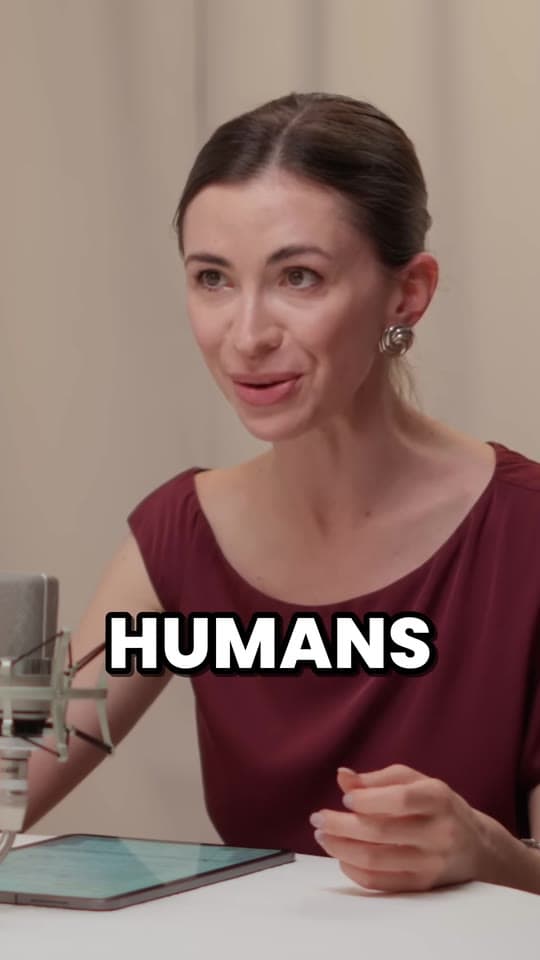
Guides
- Making clipsHow to find the best moments to clip in a video, stream or podcastWhere the clip-worthy moments hide in a long video, and fast ways to find them: Most replayed, chat, transcripts and sound.11 min read
- Making clipsHow to use ChatGPT to find clips in a videoA transcript, a good prompt and a check of every timestamp: how to use ChatGPT as a clip finder, and where it falls short of a clipping tool.13 min read
- Making clipsHow to clip faster: a workflow for 10 clips a dayA clipping workflow from one long video to ten finished clips, and which steps are worth handing to AI.12 min read
More free tools
- Vertical video converterTurn a horizontal video into a 1080 × 1920 one for TikTok, Reels and Shorts, cropped or fitted, without uploading it.
- Video highlight finderFind the liveliest moments in a stream, podcast or video by its sound, jump to each one and save it as a clip, without uploading it.
- Split screen video makerStack a streamer's webcam over the game, two people talking, or a clip over gameplay, in one 1080 × 1920 video.
- Crop videoCrop a video to any shape, 9:16, 1:1, 4:5 or your own, by dragging a box over it, without uploading it.
- Video resizerResize a video for TikTok, Instagram, YouTube or any size you type: cropped to fill, or whole on a blurred background, without uploading it.
- Add text to videoPut a title, a hook or a label on a video, styled the way clips are and placed clear of the apps' buttons, as an MP4 with no watermark.
- Add watermark to videoPut your @handle or logo on a video, see-through, in any corner or moving between them, clear of the apps' buttons.
- Rotate videoTurn a sideways or upside-down video the right way up, or flip it, in seconds and without uploading it.
- Add captions to videoBurn captions into a vertical video, word by word in the styles clips use: transcribed from its speech, or from an SRT or VTT file.
- Auto caption generatorTurn a video's speech into timed captions in your browser: edit them, download SRT or VTT, or burn them into a vertical video.
- SRT to VTT converterConvert subtitles between SRT and VTT, shift their timing, or turn them into plain text, in your browser.
- Video to text converterTranscribe a video or audio file into text with timestamps, in your browser, and copy or download it.
- Video compressorMake a video smaller to fit Discord, an email or any size you pick, as an MP4, without uploading it.
- MP4 converterTurn MOV, MKV, WebM and other videos into MP4, several at once, without losing quality when the formats allow, and without uploading them.
- Video trimmerCut a video down to the part you want, at the same size and quality, in your browser and without uploading it.
- Video splitterSplit a video into parts: every 30 or 60 seconds, into equal parts, or where you mark it, kept as it is or 9:16 and numbered.
- Merge videosJoin clips into one video, in the order you choose, fitting clips of other shapes on a blurred background, black bars or a crop.
- TeleprompterRead your script on camera: it scrolls at your speaking pace, pauses when you do, and can record you with your camera.
- Speed up videoSpeed a video up or slow it down, from 0.25× to 4×, keeping the voice's pitch, and download the MP4. Works on audio too.
- Video to GIF converterTurn a few seconds of a video into a GIF, at the size and smoothness you pick, in your browser.
- Remove background noise from videoTake fans, hum, traffic and room noise out of a video's sound (or a sound file's) and keep the voice, on your device.
- Increase video volumeMake a quiet video louder: it's measured in LUFS and brought up to -14 LUFS, a common level for social video, without distorting.
- Bleep censorBleep the swearing out of a video or podcast: it's transcribed on your device, the swear words found, and each one bleeped.
- Add music to videoPut a song under a video's sound: set the volumes, fade it, loop it, and let it dip when someone talks. Download the MP4.
- Video to MP3 converterSave a video's sound as an MP3, M4A or WAV, all of it or just a part, in your browser and without uploading it.
- Audiogram makerTurn a podcast's audio into a video: its cover, a waveform that moves with the sound and captions from the speech, as a 9:16, square or 16:9 MP4.
- Remove audio from videoTake the sound out of a video, keeping the picture exactly as it is, in seconds and without uploading it.
- Remove silence from videoCut the pauses out of a talking video or podcast automatically: hear it without them first, then download a tighter MP4.
- Video size checkerCheck a video's shape, size, length and format against what TikTok, Reels and Shorts take, and see what to fix.
- Safe zone checkerCheck your clip against TikTok, Reels and Shorts' buttons and captions before you post.
- Social media character counterCount the characters and hashtags in a caption, title or post the way TikTok, Instagram, YouTube and X count them, and trim it to fit.
- YouTube thumbnail makerMake a 16:9 thumbnail from a frame of your video: a bold title, your face on top, and a preview the way YouTube shows it.
- YouTube banner makerMake a 2560 × 1440 YouTube channel banner with your name and schedule inside the area every device shows, and preview it on a TV, a computer and a phone.
- Stream schedule makerMake a weekly stream schedule image for X, Discord, Instagram and Stories, with your times in your viewers' time zones too, free and without signing up.
- Shorts thumbnail makerMake a 9:16 cover for a Short, a TikTok or a reel: a frame of your video with a bold title, at the sizes the apps suggest.
- YouTube clip makerClip any moment of a YouTube video by its start and end, and share it as a link, an embed or its timestamps.
- YouTube timestamp generatorMake chapters for a YouTube description: mark them as the video plays or from its transcript, checked against YouTube's rules.
- YouTube thumbnail downloaderGet any YouTube video's thumbnail in every size YouTube keeps, up to 1280 × 720, from its link.
- Aspect ratio calculatorFind any size's aspect ratio, a new width or height at the same ratio, and the crop for 9:16, 1:1 or 4:5.
- Clipping earnings calculatorSee what your clips could earn on campaigns that pay per 1,000 views, by the day, month and year.
- AI clipping cost calculatorSee what AI clipping costs you on Clyper for the video you clip each month: the plan that covers it, and the cost per video, clip and hour.
- Clipping rate calculatorWork out what to charge for clipping: a price per clip and a monthly package, from your time, your costs and what you want to earn.
- YouTube Shorts money calculatorSee what YouTube Shorts pay for your views, from the ad revenue Shorts share with creators in the Partner Program.
- TikTok money calculatorSee what TikTok's Creator Rewards Program could pay for your views, per 1,000 qualified views.
- Instagram money calculatorEstimate what an Instagram account can earn from brand deals, gifts and subscriptions, and what the same views pay on other apps.
- YouTube money calculatorSee what your YouTube videos could earn from ads, per 1,000 views, by the month and the year.
- Twitch money calculatorSee what your Twitch subs, Prime subs, Bits and ads could pay a month and a year, on the standard 50% share or the Plus Program's.
- YouTube watch hours calculatorSee how many watch hours your views make and how long until you reach YouTube's 4,000 for monetization.
- Engagement rate calculatorWork out a post's engagement rate on TikTok, Instagram or YouTube, by views and by followers, against typical rates.
- Content calendar generatorPlan a month of TikToks, Reels and Shorts: how many clips you need, which long videos they come from, and when to post them, as a calendar to download.
- Hook generatorGet opening lines for your clips from formulas that keep people watching past the first second.