Highlight captions
Highlight captions: a bright box behind the spoken word
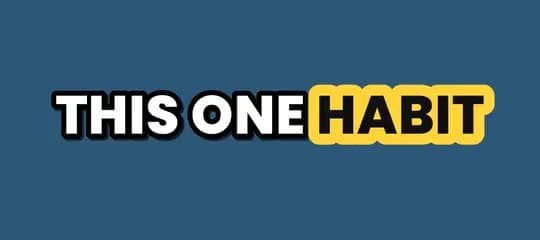
Highlight shows 3 words at a time and puts a bright yellow box behind the one being said, with dark text on it. It reads over the busiest footage. On Pro and Studio.
- No watermark
- 1080 × 1920 exports
- Captions in 50+ languages
- Up to 30 clips per video
Highlight captions
- 3 words, 15 characters at most
- A yellow box behind the spoken word
- Dark text on the box, white on the rest
- Pro and Studio
Drawn live in your browser by Clyper's own caption builder, the one that burns captions into every clip. Try other languages, or compare the other styles.
How it works
- 1
Paste a link
A YouTube video or an upload. Clyper finds its best moments and captions every word.
- 2
Pick Highlight
Choose Highlight when you start the video, or switch any clip to it in the editor.
- 3
Download
1080 × 1920 MP4s with Highlight captions burned in, ready for TikTok, Reels and Shorts.
What you get
- Timed to every wordEach word appears as it's said, with a new caption at each sentence, comma and pause.
- 50+ languagesHighlight works in every language Clyper captions, in the right font for its script.
- Highlight, in your colorsOn Pro and Studio, save a style of your own from Highlight, with your font, colors, size and height.
- Hook headlinesOn Pro and Studio, each clip opens with its hook as a headline at the top.
- Fix any wordCorrect a name or a misheard word in the editor and see the change at once.
- Burned inPart of the video, so the captions show on every app exactly as you saw them.
“Didn’t touch editing software once. Just dropped links in, posted what it spit out.”
 Jordan Mackey, faceless clipper · $1,200/mo
How Highlight moves
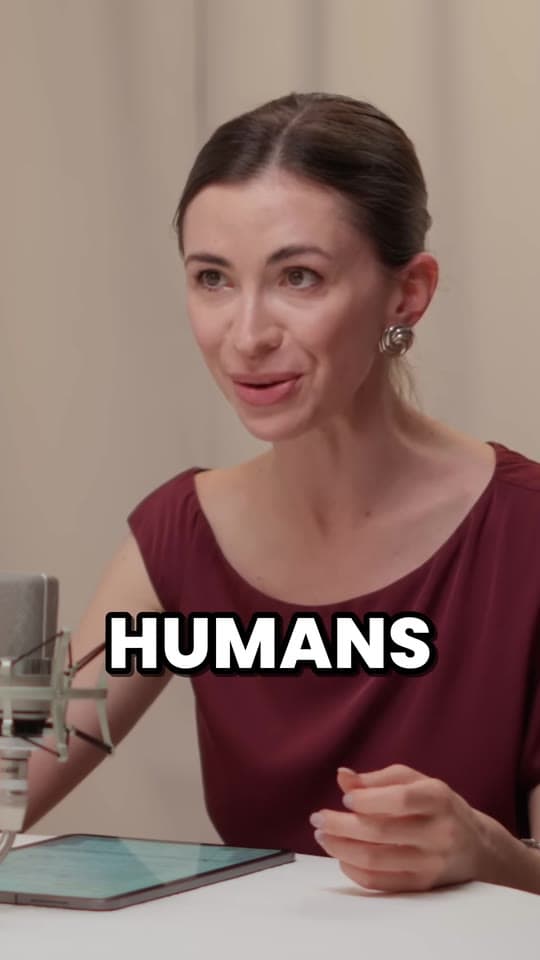
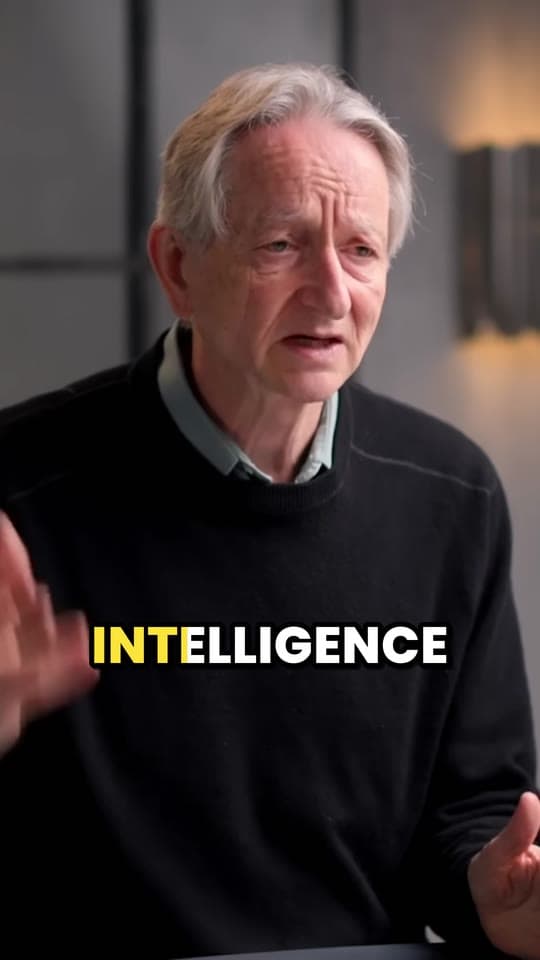
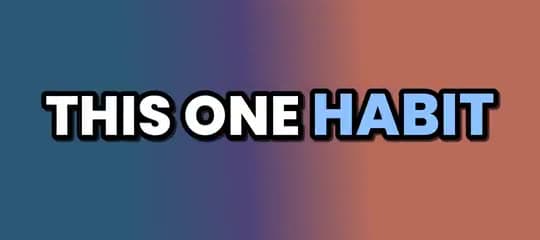
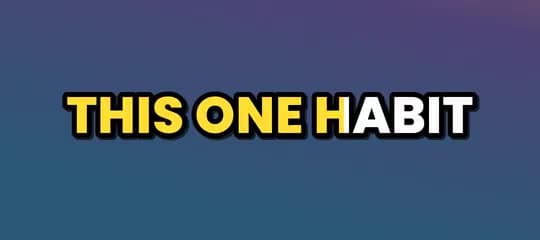
The caption goes up in white capitals with a black outline. The word being said turns dark and gets a bright yellow box behind it, which jumps to the next word the moment it's said. The box gives the spoken word the strongest contrast of any style, so it holds up over bright, busy or fast-moving video.
When to use Highlight
- Explainers and tips, where each word is a step and the box marks where you are.
- Busy footage: gameplay, events, street interviews, anywhere white text alone gets lost.
- Bold, loud clips that should look like it from the first frame.
Highlight at a glance
| Highlight | |
|---|---|
| Words at a time | Up to 3 |
| Characters at a time | Up to 15 (8 in Japanese, Chinese and Thai) |
| Letters | Capitals |
| Text | White, with a 10 px black outline |
| The spoken word | A yellow box, dark text |
| Size | 190 on a 1080 × 1920 frame |
| Height | Centered 1,300 px down the 1,920 px frame |
| Plans | Pro and Studio |
Make Highlight your own
On Pro and Studio, save up to 10 caption styles of your own: start from any of the 5, then choose the font (Poppins, Montserrat, Anton, Bebas Neue, Archivo Black or Bangers), the colors, the size and how high the captions sit. They show beside the built-in styles when you start a video or edit a clip.
Your styles carry your font into every language with letters it has; for other scripts, the captions fall back to the matching Noto Sans font, so nothing turns into empty boxes.
The other caption styles
Compare all 5 on the preview above, or read about each. Every style works in every language: see captions in every language.
Or see a language:
What it costs
A credit is a minute of video, so a plan is how much video you can clip in a month, however many clips it makes.
Starter
$20/mo
150 minutes, about 75 clips
Pro
$19/mo yearly
400 minutes, about 200 clips
Studio
$48/mo yearly
1,000 minutes, about 500 clips
Also as 2× or 4×, for more of both
Questions
Can I change the highlight color?
On Pro and Studio, yes: save a style of your own that starts from Highlight, with the box and text in your colors.
Which plans include Highlight?
Pro and Studio, with the other styles and styles of your own. Starter clips use Pop.
Does Highlight work in every language?
Yes. Highlight captions every language Clyper does, 50+ of them, each in a font made for its script, from Spanish to Japanese to Arabic.
Can I switch a clip to another style?
Yes, in the clip editor, with the preview showing the change before you download. On Starter, clips use Pop; Pro and Studio can switch between all 5.
Are the captions burned into the video?
Yes. They're part of the clip, so they show on every app exactly as you chose them, with nothing to upload separately.
Clips with Highlight captions, ready to post
Paste a YouTube link. Clyper finds the best moments, frames them vertically and captions every word in Highlight: up to 30 clips, ready for TikTok, Reels and Shorts.

Learn more
- Making clipsHow to caption short videos so people keep watchingWhy every clip needs captions, the styles that hold attention, and where to put them so the apps don't cover them.5 min read
- Making clipsHow to add captions on TikTok, Instagram Reels and YouTube ShortsEach app's own captions, step by step: turning them on, fixing words, and why most clippers burn styled captions into the video instead.10 min read
- GrowingHook examples for TikTok, Reels and Shorts (and why they work)Why the first seconds decide a short video's reach, 54 hook templates with examples, and how to find and test the hook in your own clips.12 min read
Free tools
- Auto caption generatorTurn a video's speech into timed captions in your browser: edit them, download SRT or VTT, or burn them into a vertical video.
- Add captions to videoBurn captions into a vertical video, word by word in the styles clips use: transcribed from its speech, or from an SRT or VTT file.
- Video to text converterTranscribe a video or audio file into text with timestamps, in your browser, and copy or download it.