How to make vertical videos in Premiere Pro for Shorts, Reels and TikTok
To make a vertical video in Premiere Pro, set up a 1080 × 1920 sequence, fill it with your 16:9 footage and move the frame onto the speaker (by hand or with Auto Reframe), add captions from Premiere's speech to text, and export an H.264 MP4. Here's each step in the current version, Premiere 26.5, with the settings for TikTok, Reels and Shorts, a webcam-over-gameplay layout for stream clips, the mistakes to avoid, and the time it takes per clip.
Updated 12 min read
From Clyper, the AI clip maker that turns long videos into captioned vertical clips for TikTok, Reels and Shorts.
Get started
In short
- Make the sequence with File > New > Sequence: on the Settings tab, set Editing Mode to Custom, Frame Size to 1080 by 1920, Square Pixels and the frame rate you recorded at. Or let Sequence > Auto Reframe Sequence make a 9:16 copy of a wide edit.
- Click Fill frame in the Properties panel to fill the 9:16 frame with a 16:9 clip, then move it onto the speaker. With two people, cut at each change of speaker (Ctrl+K, or Cmd+K on a Mac) and reposition each piece.
- Caption it with Create captions from transcript in the Text panel; since 26.3, a Single Word layout shows one word at a time. Keep captions inside the 820 × 1260 area clear of the apps' buttons.
- Export H.264 at 1080 × 1920 and the frame rate you recorded at. YouTube recommends 8 Mbps for 1080p at 24 to 30 fps and 12 Mbps at 48 to 60. Burn the captions in.
- By our estimate, one clip takes 25 to 60 minutes by hand, most of it finding the moment. Clyper finds the moments in a whole video and frames and captions each one, which leaves Premiere for the finishing touches.
On this page
- 1How to set up a vertical sequence in Premiere Pro
- 2Reframe a 16:9 clip by hand: Fill frame and Position
- 3Auto Reframe in Premiere Pro: the settings for talking clips
- 4Two speakers: cut at each change, keyframe only the drift
- 5Webcam over gameplay: a stacked layout for stream clips
- 6Captions with Premiere's speech to text
- 7Premiere Pro export settings for TikTok, Reels and Shorts
- 8Mistakes to avoid
- 9How long a clip takes in Premiere, and where Clyper fits
- 10Questions
How to set up a vertical sequence in Premiere Pro
Adobe renamed Premiere Pro to just Premiere with version 26.0, in January 2026. The steps here are for 26.5, released in September 2026, and the menu names are Adobe's. If one has moved in your version, look nearby.
Start with a sequence the shape of a phone screen. Choose File > New > Sequence, open the Settings tab, and set:
| Setting | Set it to | Why |
|---|---|---|
| Editing Mode | Custom | It unlocks the frame size. It sets the preview format, not your export. |
| Timebase | The frame rate you recorded at, such as 30 or 60 | YouTube asks for uploads at the recorded frame rate |
| Frame Size | 1080 horizontal, 1920 vertical | Premiere works out the 9:16 shape for you |
| Pixel Aspect Ratio | Square Pixels (1.0) | Anything else stretches the picture |
| Fields | No Fields (Progressive Scan) | Phones show progressive video |
Name it and click OK. If you'll make more, save these settings as a sequence preset, so the next one is a click. Already cut the clip in a wide sequence? Don't rebuild it: Auto Reframe Sequence (below) makes a 9:16 copy and leaves the original alone.
Reframe a 16:9 clip by hand: Fill frame and Position
Drop the clip into the vertical sequence. A wide clip sits in the middle with empty space above and below it. To fill the frame:
- Select the clip and open the Properties panel. It holds the clip's Position, Scale, Rotation and Opacity, and two quick actions.
- Click Fill frame. Premiere scales the picture until the frame is full, cropping off the sides. Fit to frame does the opposite: the whole picture, with bars. For TikTok, Reels and Shorts, you want Fill.
- Move it onto the speaker by changing Position's first value (left and right) until their face is in the middle, with the eyes about a third of the way down, so captions in the lower middle don't cover the chin.
Mind the resolution. A 9:16 slice of a 1080p frame is 608 × 1080 pixels, so filling 1080 × 1920 enlarges it about 1.8×, and it looks a little soft. From 4K the slice is 1216 × 2160, bigger than the frame, so nothing is enlarged. Shoot in 4K if you can.
For one fixed crop with no editor at all, the free vertical video converter makes any video 1080 × 1920 in your browser. Which footage to crop, fit or stack, and what each keeps, is in how to convert horizontal video to vertical.
Auto Reframe in Premiere Pro: the settings for talking clips
Auto Reframe tracks the main subject and moves the crop for you, keyframe by keyframe. To use it on a whole edit:
- Cut the clip in its normal 16:9 sequence first.
- Select the sequence in the Project panel and choose Sequence > Auto Reframe Sequence.
- Target Aspect Ratio: pick the vertical 9:16 preset, or type it. Since version 26.2.2 (May 2026) you can also set the exact resolution, so enter 1080 × 1920.
- Motion Tracking: Slower Motion for talking heads and interviews (almost static, with few keyframes), Default for most footage, Faster Motion for action, which adds many more keyframes.
- Clip nesting: nest the clips if they already have keyframed motion or speed changes. Adobe notes that nesting doesn't keep soft transitions properly.
Premiere makes a copy of the sequence in an Auto Reframe Sequences folder in the Project panel, with the Auto Reframe effect on every clip. To reframe a single clip instead, drag Auto Reframe from Video Effects > Transform onto it.
Then check it. Select a clip and open Effect Controls: you can change its Motion Tracking, nudge the frame with Reframe Offset and Reframe Scale, or edit the keyframes it made. Auto Reframe follows the main subject, not the voice, so in a conversation it can sit on the listener. Watch every change of speaker.
Two speakers: cut at each change, keyframe only the drift
A podcast filmed wide has two people too far apart for one 9:16 frame. The frame should be on whoever's talking, and it should switch the way a camera cut does:
- Cut at each change of speaker. Put the playhead where the other person starts talking and use Add Edit (Ctrl+K, or Cmd+K on a Mac) to cut the clip there. Then select each piece and set its Position on whoever's talking in it.
- Keyframe only the drift. When one person leans or shifts, open Effect Controls, click Toggle Animation (the stopwatch) next to Motion > Position to set a keyframe, move the playhead and change Position to set the next. Premiere slides the frame between them, which suits a lean. Between two people, the same slide pans across the empty table, so cut instead.
- Both at once? Stack them: two 1080 × 960 halves, one above the other, so both stay on screen. The free split screen video maker does it in your browser.
On a 40-second clip with a dozen turns, that's a dozen cuts and positions. Clyper's auto reframe does the same for every clip it makes: it frames whoever's talking, judged by the movement around their mouth, and switches when someone else speaks.
Webcam over gameplay: a stacked layout for stream clips
A stream has a game filling the screen and the streamer in a small box in a corner. Crop it to 9:16 and you lose one of them. Stack them instead, using two copies of the same clip:
- Put the stream on V1 and a second copy of it directly above, on V2.
- Crop the V2 copy to the webcam. Select it and, in the Properties panel, crop each edge (in percent) until only the webcam is left.
- Scale it up and move it to the top, the full 1080 pixels wide and about 608 tall: a 16:9 strip, the shape of most webcams.
- Fill the frame with the V1 copy (Fill frame) and move it so the middle of the game, where the action and the crosshair are, shows in the 1312 pixels below the webcam.
- Put the captions on the seam between the two, where they cover neither the face nor the game.
The split screen video maker makes the same layout free in your browser: drag one box onto the webcam and one onto the game, and download a 1080 × 1920 MP4. For whole streams, Clyper spots the webcam and stacks it over the game in each clip; see stream clips.
Captions with Premiere's speech to text
- Switch to Window > Workspaces > Captions and Graphics. It opens the Text panel and the Properties panel together.
- Transcribe. In the Text panel's Transcript tab, click Transcribe, or turn on automatic transcription when you import.
- Create the captions. In the Captions tab, choose Create captions from transcript. Pick a caption preset (Subtitle is the default), set Lines to Single and lower the maximum length in characters, so only a few words show at once. For one word at a time, open Captioning Preferences and set Layout to Single Word (version 26.3 and later).
- Fix the words. Read every caption in the Text panel. Names, brands and numbers go wrong most often.
- Style them. Select the captions and use the Properties panel: Text for the font and size, Appearance for the fill, stroke and shadow, and Align and Transform to place them. To reuse the look, open Track style and choose the plus icon, then Create style.
Keep them inside the safe area. Premiere's Safe Margins (in the Program Monitor's settings) are the old TV action-safe and title-safe lines, not where TikTok, Reels and Shorts put their buttons. Instead, download an overlay from the safe zone checker: a 1080 × 1920 PNG of each app's layout, or all three at once. Put it on the top video track while you place the captions, and delete it or turn the track off before you export. Clear on all three apps is a 820 × 1260 area: 240 pixels from the top, 420 from the bottom and 200 from the right.
No Premiere on this computer? The free auto caption generator turns speech into timed captions you can edit and download as SRT, which Premiere imports as a caption track. More on caption files in how to add subtitles to a video.
Premiere Pro export settings for TikTok, Reels and Shorts
Choose File > Export > Media (or the Export tab), then:
| Setting | In Premiere | Why |
|---|---|---|
| Format | H.264 (an MP4) | What YouTube recommends, and a format TikTok takes on the web |
| Preset | Match Source - Adaptive High Bitrate | Matches the sequence and sets the bitrate by its frame size |
| Frame size | 1080 × 1920: check the summary says so | Fills the screen, above Instagram's 720-pixel minimum and TikTok's 720 × 1280 on the web |
| Frame rate | The sequence's, the one you recorded at | YouTube asks for the recorded rate; Instagram for at least 30 fps |
| Bitrate | Bitrate Encoding VBR, 1 pass; Target Bitrate 8 Mbps at 24 to 30 fps, 12 at 48 to 60 | YouTube's recommendation for 1080p. More doesn't help: the apps re-encode uploads |
| Audio | AAC, 48 kHz | YouTube's recommendation |
| Captions | Burn Captions Into Video | So the captions are part of the picture on every app |
| Publish | Optional: toggle TikTok or YouTube | Premiere uploads the file once it's rendered |
Post the best copy you have rather than compressing it first: each app compresses it again. Every app's sizes and limits are in video sizes for TikTok, Reels and Shorts, and the video size checker checks a file against all three.
Mistakes to avoid
- A 16:9 sequence by accident, from dragging a clip into an empty timeline or accepting the offer to change the sequence to match a clip. Check the sequence says 1080 × 1920 before you edit.
- Bars instead of a crop. Fit to frame keeps the whole picture but leaves it small, and Instagram shows reels with borders less often. Fill the frame.
- Enlarging 720p. A 9:16 slice of a 720p video is enlarged 2.7× to fill the frame and looks soft. Start from the sharpest copy you have.
- Trusting Auto Reframe on a conversation. It follows the main subject, not who's talking. Check each change of speaker.
- Captions under the buttons, or the safe zone overlay left in the export. Place text with the overlay on, then turn it off.
- Captions left on their own track. Without Burn Captions Into Video, the export has no captions on it.
- A horizontal export of a vertical sequence. Read the summary in the export settings before you click Export: it should say 1080 × 1920.
How long a clip takes in Premiere, and where Clyper fits
Here's the honest cost of one clip from a long video, for someone who knows Premiere. These are our estimates, not measurements:
| Step | By hand in Premiere | With Clyper |
|---|---|---|
| Find the moment | 10 to 20 min | Picked from the transcript, with a hook score |
| Cut it on whole sentences | 3 to 5 min | Cut on whole sentences |
| Frame it 9:16 | 5 to 15 min | Framed on whoever's talking |
| Captions: create, fix, style | 5 to 15 min | Every word, timed, clear of the buttons |
| Export | 2 to 5 min | Download the 1080 × 1920 MP4 |
| One clip | 25 to 60 min | A few minutes to check it |
| 10 clips from one video | About 4 to 10 hours | A few minutes a clip |
The slow part isn't Premiere's; it's the work around it. Finding the moment means watching or skimming the whole video, and every clip repeats the framing and captions. (For finding moments faster by hand, see how to find the best moments to clip.)
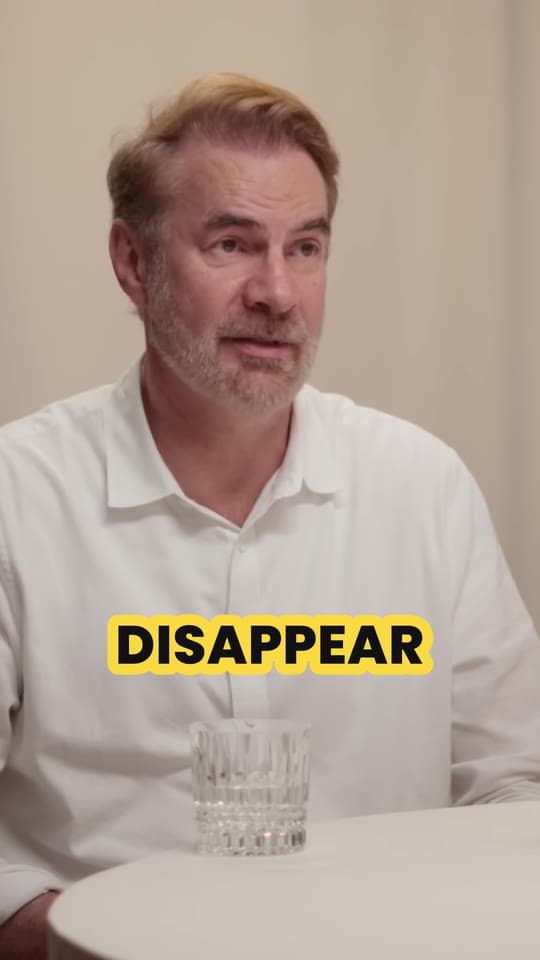
Clyper does those steps for a whole video. Paste a YouTube link (public or unlisted, 1 minute to 4 hours) or upload the file, and it finds the best moments, cuts each on whole sentences, frames it 9:16 on whoever's talking (or stacks a streamer's webcam over the game) and adds animated captions timed to every word: up to 30 clips per video. You trim, fix any caption and download 1080 × 1920 MP4s with no watermark.
Then Premiere is for the finishing touches: B-roll, punch-ins, music, sound effects, your own graphics. The clips open in Premiere like any MP4. The captions are burned in, so fix any word in Clyper's editor before you download, and don't add Premiere captions on top. For the whole workflow, from the moment to the export, see how to edit short-form videos. Prefer other editors? The same job is in DaVinci Resolve and CapCut.
Questions
How do I make a vertical video in Premiere Pro?
Create a sequence with File > New > Sequence, and on the Settings tab set Editing Mode to Custom and Frame Size to 1080 by 1920. Put your clip in it, click Fill frame in the Properties panel and move it onto the subject, then export at 1080 × 1920.
What sequence settings should I use for TikTok, Reels and Shorts in Premiere?
Frame Size 1080 × 1920 (9:16), Square Pixels, No Fields (Progressive Scan), and a Timebase that matches the frame rate you recorded at, such as 30 or 60. Instagram asks for at least 30 fps.
How do I use Auto Reframe in Premiere Pro?
Select the sequence in the Project panel and choose Sequence > Auto Reframe Sequence. Pick a 9:16 Target Aspect Ratio, Slower Motion for talking heads, and click Create. Premiere makes a vertical copy with the Auto Reframe effect on each clip, which you can adjust in Effect Controls.
How do I add captions to a vertical video in Premiere Pro?
Transcribe the sequence in the Text panel, then choose Create captions from transcript in the Captions tab. Set Lines to Single, or Layout to Single Word for one word at a time, style them in the Properties panel and keep them inside the 820 × 1260 area that's clear of the apps' buttons.
What are the best Premiere Pro export settings for TikTok?
H.264 at 1080 × 1920, at the frame rate you recorded, with captions burned in. YouTube recommends 8 Mbps for 1080p at 24 to 30 fps and 12 Mbps at 48 to 60, and Premiere's Match Source - Adaptive High Bitrate preset sets one by frame size.
Is Premiere Pro called Premiere now?
Yes. Adobe renamed Premiere Pro to just Premiere with version 26.0 in January 2026. The steps for vertical video are the same; this guide follows version 26.5.
Sources
The apps' rules are from their own pages, read on October 26, 2026. They change from time to time, so check them before you rely on one.
- Adobe Community: Premiere Pro renamed Premiere with version 26.0 (January 23, 2026)
- Adobe Community: what's new in Premiere 26.5 (September 10, 2026)
- Adobe Community: what's new in Premiere 26.3, single-word captions (June 17, 2026)
- Adobe Help: Premiere desktop release notes
- Adobe Help: set a sequence's aspect ratio (Premiere)
- Adobe Help: sequence presets and settings (Premiere)
- Adobe Help: create custom sequence presets (Premiere)
- Adobe: vertical videos for social media
- Adobe: create and edit a sequence (clip mismatch)
- Adobe Help: edit video using the Properties panel (Premiere)
- Adobe Help: add the Auto Reframe effect to sequences (Premiere)
- Adobe Help: add the Auto Reframe effect to clips (Premiere)
- Adobe Help: add keyframes (Premiere)
- Adobe Help: default keyboard shortcuts (Premiere)
- Adobe Help: create captions (Premiere)
- Adobe Help: create single word captions (Premiere)
- Adobe Help: create and customize caption styles (Premiere)
- Adobe Help: basic video export settings (Premiere)
- Adobe Help: export videos to social media (Premiere)
- YouTube Help: recommended upload encoding settings
- Instagram Help: reel size and aspect ratios
- TikTok Support: creator tools (uploading on the web)