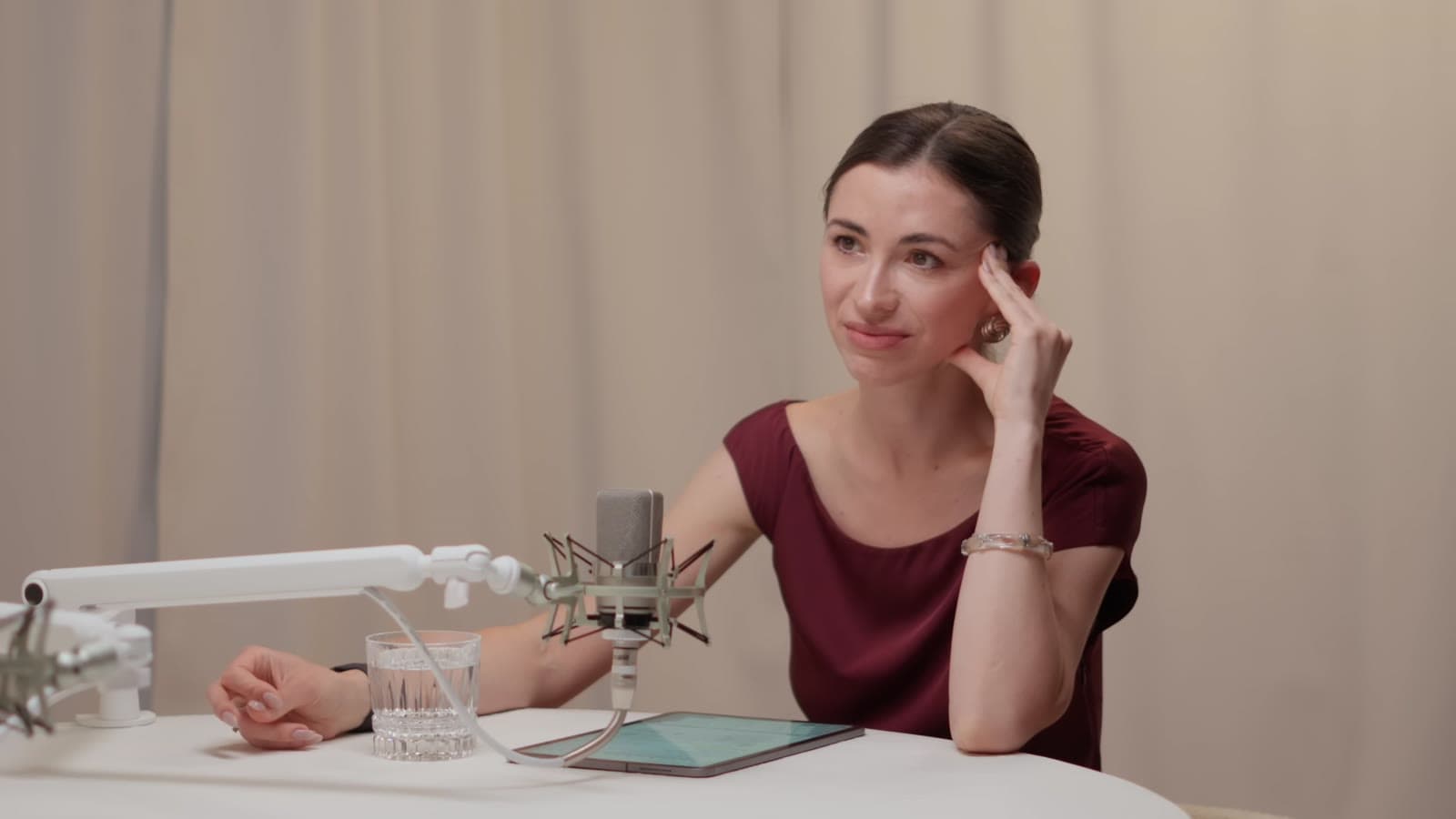
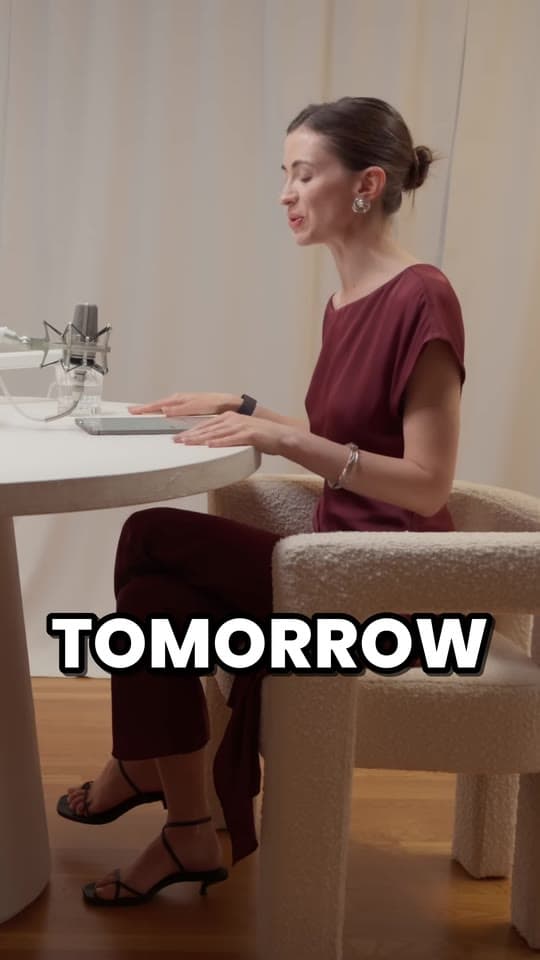
How to convert a horizontal video to vertical (16:9 to 9:16)
To convert a horizontal video to vertical, you crop a 9:16 slice around the subject, fit the whole frame on a blurred background, or stack two parts of it in a split screen. Here's which way suits your footage, what each keeps of a 16:9 picture, how to keep someone in frame when they move, and how to do it free in your browser or in CapCut, Premiere Pro and DaVinci Resolve.
Updated 12 min read
In short
- There are three ways to make a horizontal video vertical: crop it to the subject, fit the whole frame on a blurred background (or bars), or split the screen and stack two parts of it.
- A 1920 × 1080 video cropped to 9:16 keeps a 608 × 1080 slice, about a third of the width, enlarged 1.8× to fill 1080 × 1920. From 4K, the slice is bigger than the frame and needs no enlarging.
- Crop a talking head, split a stream's webcam from its game, and fit wide shots, slides and screen recordings, where a crop would cut out the point.
- When the subject moves, the crop has to move with them: keyframe it by hand, use an editor's auto reframe, or let Clyper follow whoever's talking from a YouTube link.
- A video that's only sideways isn't horizontal: rotate it rather than crop it.
On this page
- 1How to convert a horizontal video to vertical
- 2Which way suits your footage
- 316:9 to 9:16: what a crop keeps, and the resolution you lose
- 4Way 1: crop to the subject
- 5Way 2: fit the whole frame on a blurred background or bars
- 6Way 3: split screen, two parts of the frame stacked
- 7When the subject moves: reframing that follows the speaker
- 8How to do it in CapCut, Premiere Pro, DaVinci Resolve and iMovie
- 9Questions
How to convert a horizontal video to vertical
TikTok, Reels and Shorts fill a phone's screen with a 9:16 video, 1080 × 1920 pixels. A 16:9 video posted as it is fills only 32% of that screen, a strip across the middle. To make it vertical, you have three choices:
- Crop it. Keep a tall 9:16 slice of the picture, around the person or thing that matters, and lose the sides.
- Fit it. Keep the whole picture, small, in the middle of the frame, on a blurred copy of itself or on black.
- Split it. Take two parts of the frame, like a webcam and a game, and stack them, one above the other.
The quickest free way to crop or fit is the vertical video converter, which runs in your browser, so nothing is uploaded and there's no watermark:
- Choose your video (MP4, MOV or WebM).
- Pick Crop or Fit. With Crop, drag the picture sideways until what matters is in the frame. Fit puts the whole picture on a blurred copy of itself.
- Choose the part to convert, up to 5 minutes at a time.
- Convert, then download the 1080 × 1920 MP4.
For a crop of any shape at the video's own pixels (9:16, 4:5 or 1:1, with nothing scaled), use crop video, up to 10 minutes at a time. To stack two parts of the frame, use the split screen video maker. Which one fits your footage is next.
Which way suits your footage
The right way depends on what's in the shot and how much of it the viewer needs. A crop gives you a big, clear subject; a fit keeps everything but makes it small; a split keeps two things big.
| Footage | Best way | Why |
|---|---|---|
| Talking head | Crop | One person fits in a 9:16 slice, and their face stays big enough to read |
| Two people talking | Crop that switches to whoever's talking, or a split screen | Sitting apart, they don't fit one slice. Sitting close, one crop can hold both |
| Gameplay with a webcam | Split screen: webcam on top, game below | A single crop loses either the face or the game |
| Wide shots and landscapes | Fit, on a blurred background | The view is the point, and a crop keeps a third of it |
| Screen recordings | Fit, or crop to the part of the screen in use | Menus and text at the edges get cut, or shrink to unreadable |
| Text-heavy slides | Fit, or rebuild the slide in a tall layout | A crop cuts the words in half |
| A phone video that plays sideways | Rotate it | The picture is already tall; it's only lying on its side |
That last row catches a lot of people. Phones record one way and write down which way up to play the video. If the phone guessed wrong, say because you started filming with it flat on a table, the video plays on its side. Cropping that loses most of it. The free rotate video tool fixes the note instead, in seconds, without re-encoding a frame. The reverse doesn't work either: turning a horizontal video on its side makes it tall, but everything in it lies on its side too.
16:9 to 9:16: what a crop keeps, and the resolution you lose
A 9:16 slice at full height is 9/16 of the height wide. For a 1920 × 1080 video that's 1080 × 9 ÷ 16 = 607.5 pixels, rounded to 608 because video needs even sides. So the crop is 608 × 1080: 32% of the width, and of the picture. The other two-thirds of the frame is gone.
The apps show 1080 × 1920, so that slice is enlarged 1.8× to fill the screen. It has about a third of the pixels the frame holds, which is why a crop of a 1080p video never looks quite as sharp as the original. How much that shows depends on what you start from:
| Video | 9:16 crop | Scaled to 1080 × 1920 | Result |
|---|---|---|---|
| 720p (1280 × 720) | 406 × 720 | Enlarged 2.7× | Looks soft, most of all on faces and text |
| 1080p (1920 × 1080) | 608 × 1080 | Enlarged 1.8× | Fine for most clips |
| 1440p (2560 × 1440) | 810 × 1440 | Enlarged 1.3× | Fine for most clips |
| 4K (3840 × 2160) | 1216 × 2160 | Not enlarged (shrunk to fit) | Scaled down: as sharp as the apps show |
The vertical video converter warns you when a picture is enlarged more than 2×, as a crop of a 720p video is (2.7×). A fit loses no sharpness at all: the whole 1920 × 1080 frame is shrunk to 1080 × 608, but it only fills 32% of the screen's height, so faces are a third the size they'd be in a crop. Work out the crop for any other size with the aspect ratio calculator.
Way 1: crop to the subject
A crop is the right choice whenever one person or one thing carries the shot. To place it well:
- Put the eyes about a third of the way down. Not in the middle: captions usually go in the lower middle, and they shouldn't cover the chin.
- Keep clear of the edges. On a reel, Instagram's buttons and text cover about the top 220, bottom 420 and right 120 pixels. Instagram doesn't publish exact margins, so these are our estimates of where they sit today, rounded up a little, since they shift between phones and app updates. To be clear on TikTok, Reels and Shorts at once, keep faces and text 420 pixels from the bottom and 200 from the right. Drop a frame into the safe zone checker to see what each app covers.
- Crop the whole thing, not just the first frame. Scrub through before you export: a crop that's right at the start can be wrong a minute later, when someone leans or stands up.
For one shot where nobody moves much, a fixed crop in the vertical video converter or crop video is all you need. For a feed post rather than a reel, crop video also does 4:5 and 1:1; every app's shapes are in video sizes for TikTok, Reels and Shorts.
Way 2: fit the whole frame on a blurred background or bars
A fit keeps every pixel of the picture: it's shrunk to the width of the screen and sits in the middle. Use it when the whole frame is the point (a landscape, a wide shot of a room, a slide, a screen recording) or when the people in it are spread across it.
- Blurred background. The space above and below is filled with a blurred, darkened copy of the same video, so the frame isn't half empty. It's what the vertical video converter's Fit does.
- Black bars, with a title. Plain black above and below looks unfinished on its own, but the space is useful: put a title in the top bar and the clip below it. The add text to video tool has a 9:16 on black layout for exactly that.
Know the cost. The picture fills only 32% of the screen, so faces and text are small on a phone. And the apps don't love frames around a video: Instagram lists reels with borders among those it recommends less often, and YouTube asks creators to avoid adding padding or black bars to a video. Fit when a crop would lose the point of the shot, and crop when it wouldn't.
Joining several clips of different shapes into one vertical video? The merge videos tool sets the shape (9:16 among them) and fits each clip with a blurred background, black bars or a crop to fill. The steps are in how to merge videos.
Way 3: split screen, two parts of the frame stacked
Some horizontal videos have two things worth seeing, too far apart for one crop. Stack them instead, each the full width of the screen:
- A stream with a webcam. The streamer's face goes in a 1080 × 608 panel on top (16:9, the shape of the webcam itself) and the middle of the game fills the 1312 pixels below, where the action stays big enough to follow.
- Two people talking. In a podcast or interview filmed wide, give each person a 1080 × 960 half. Both stay on screen as they talk to each other.
The split screen video maker does both: drag one box onto what the top panel shows and another onto the bottom's, and it makes one 1080 × 1920 MP4. Put captions on the seam between the panels, where they cover neither the face nor the game. For whole streams, Clyper finds the webcam and stacks it over the game in each clip, for the shots where the webcam is on screen; see stream clips.
When the subject moves: reframing that follows the speaker
A fixed crop works while the person in it sits still. People don't: they lean, gesture, walk, and in a conversation two people take turns, so a crop that never moves ends up on the wrong person, or on an empty chair. Camera cuts make it worse, since every new angle puts the subject somewhere else.
By hand, the fix is keyframing: in an editor, set the crop's position at each change, and cut at each camera cut so every shot gets its own framing. It works, but it's slow, shot by shot through the whole video. Editors' auto reframe tools (next section) do the tracking for you, but they follow the action (Premiere) or the most representative object (Resolve), not who's talking, so check the framing wherever two people take turns.
Clyper's auto reframe is built for people talking. Paste a YouTube link (public or unlisted, 1 minute to 4 hours) or upload a video, and it finds the best moments, cuts each one on whole sentences and frames it 9:16:
- One person in the shot: it follows them, holding still while their face stays near the middle and easing over when it moves away.
- A few people close together: it keeps them all in the frame.
- People too far apart to fit: it frames whoever's talking, judged by the movement around their mouth, and switches when someone else speaks.
- Camera cuts: each shot gets its own framing, changing exactly when the edit does.
- A stream's webcam over gameplay: it stacks the webcam on top and the game below.
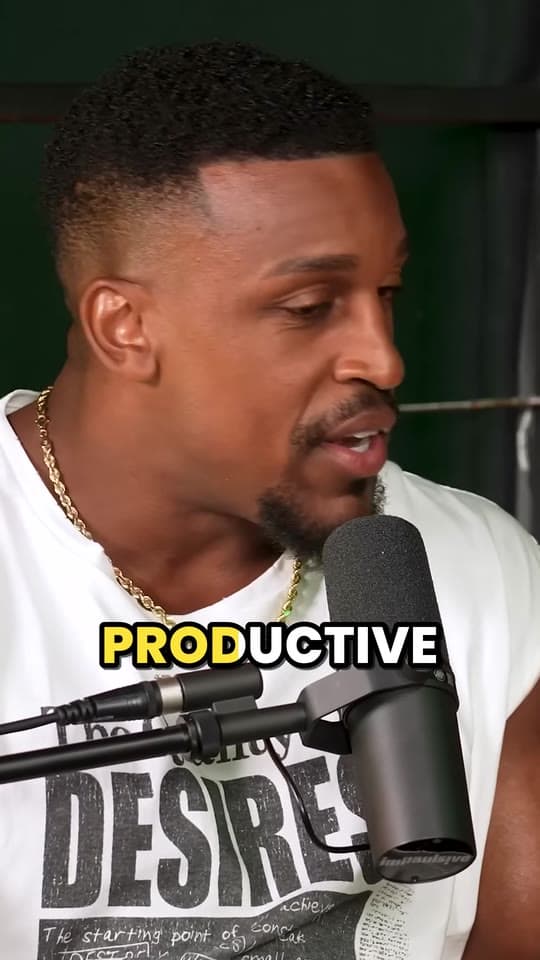


It reframes the clips it makes, each with captions on every word, at 1080 × 1920 with no watermark; it doesn't turn a whole video vertical in one piece. For a whole video, use the free tools above or an editor. The full process from a long YouTube video to Shorts is in how to turn a YouTube video into Shorts, and what Clyper does with it in YouTube to Shorts.
How to do it in CapCut, Premiere Pro, DaVinci Resolve and iMovie
CapCut. On a computer, choose Ratio under the player and pick 9:16, then go to Video, then Basics, then Auto reframe to keep the subject in the frame; CapCut's own guide also describes an Auto reframe tool where you import the video, pick 9:16 and set the stabilization and how fast the camera moves. On a phone, tap the clip on the timeline, tap Auto reframe and choose 9:16, or use Aspect ratio at the bottom to change the shape yourself. CapCut also lists a blurred background to fill the space when the picture doesn't. Making a whole clip there is in how to make clips in CapCut.
Premiere Pro (just Premiere since Adobe dropped the “Pro” with version 26.0, in January 2026). Select the sequence in the Project panel and choose Sequence, then Auto Reframe Sequence. Pick a vertical Target Aspect Ratio (or type 9:16) and, if you like, the resolution, such as 1080 × 1920. Premiere makes a copy of the sequence in an Auto Reframe Sequences folder, with the Auto Reframe effect on every clip. Its Motion Tracking menu sets how closely it follows: Slower Motion for talking-head interviews, Default for most footage, Faster Motion for action. Adobe notes that a sequence with several points of interest or fast movement may need its keyframes fine-tuned afterwards.
DaVinci Resolve. Smart Reframe is in DaVinci Resolve Studio only, the paid version ($295 on Blackmagic's site). Duplicate the timeline, open Timeline Settings and set a custom 9:16 resolution, with “Mismatched resolution files” on “Scale full frame with crop”. Then select the clips, open the Inspector's Video tab and, under Smart Reframe, leave Object of Interest on Auto (or choose Reference Point and draw a box around the subject) and click Reframe. In the free version, you move and keyframe the position by hand.
iMovie isn't made for this. Apple's iMovie for Mac guide describes a 16:9 frame: its crop frame is constrained to 16:9, and 4:3 footage is cropped to fill the frame, or shown with black bars if you choose Fit. Its iPhone guide covers zooming a clip within the frame (pinch and drag in the viewer), not making a vertical project. Crop or fit the video with one of the free tools instead.
Questions
How do I convert a horizontal video to vertical for free?
Open the free vertical video converter, choose your video, pick Crop (drag the picture to keep what matters) or Fit (the whole picture on a blurred background), and download the 1080 × 1920 MP4. It runs in your browser, with no upload and no watermark.
How do I change 16:9 to 9:16 without cropping?
Fit it: the whole picture is shrunk to the width of the screen and the space above and below is filled with a blurred copy of the video, or black. Nothing is cut, but the picture fills only 32% of the screen's height.
What size is a 1920 × 1080 video cropped to 9:16?
608 × 1080 pixels, about a third of the width, which the apps enlarge 1.8× to fill 1080 × 1920. A 4K video cropped to 9:16 is 1216 × 2160, big enough that nothing is enlarged.
Why does my video look blurry after making it vertical?
A crop keeps part of the picture and enlarges it: a 720p video's 9:16 slice is enlarged 2.7× to fill the screen, which looks soft. Start from the sharpest copy you have, 1080p or better, 4K for no enlarging at all.
How do I keep someone in frame when they move?
Move the crop with them: keyframe its position in an editor, or use CapCut's Auto reframe, Premiere Pro's Auto Reframe or DaVinci Resolve Studio's Smart Reframe. For clips of people talking, Clyper frames whoever's talking and switches as they take turns, from a YouTube link.
How do I fix a video that plays sideways?
Rotate it rather than crop it: the video was recorded tall but saved with the wrong way up. The free rotate video tool turns it in seconds without re-encoding the picture.
Sources
The apps' rules are from their own pages, read on October 20, 2026. They change from time to time, so check them before you rely on one.
- Instagram Help: what kind of reels you may see (borders)
- Instagram Help: reel size and aspect ratios
- YouTube Help: video resolution and aspect ratios (padding and black bars)
- CapCut: how to make a horizontal video vertical (October 10, 2026)
- CapCut: horizontal to vertical video converters (June 16, 2025)
- Adobe Premiere Help: add Auto Reframe effect to sequences (April 15, 2026)
- Adobe Premiere Help: Auto Reframe overview (April 15, 2026)
- Adobe Community: Premiere Pro renamed Premiere with version 26.0 (January 23, 2026)
- Blackmagic Design: DaVinci Resolve 21 Reference Manual (Smart Reframe)
- Blackmagic Design: DaVinci Resolve Studio
- Apple Support: crop clips in iMovie on Mac
- Apple Support: adjust zoom effects in iMovie on iPhone