How to start a video podcast: setup, publishing and clips
To start a video podcast you need a camera and a mic for each person, soft light, a quiet room, and a plan for where it goes: YouTube, Spotify and now Apple Podcasts all play video. Here's the setup for one, two or more people, recording remotely, editing, publishing on each app, and growing the show with clips.
Updated 10 min read


In short
- Start small: a camera and a mic per person, one soft light and a quiet room. A phone or webcam is enough for a solo show; add cameras as you add people.
- Record every camera and every mic separately. Remote guests record themselves on their own computers, and you line the files up after.
- Publish on YouTube as a podcast (a playlist of full episodes) and on Spotify through Spotify for Creators. Other podcast apps get the audio through your RSS feed.
- Clips are how new people find a show: cut each episode into a week of vertical clips, framed on whoever's talking and captioned.
On this page
How to start a video podcast, step by step
A video podcast is a podcast you also film. Starting one comes down to six steps:
- Pick the format: solo, a host and a guest, or a panel. It decides how many cameras and mics you need.
- Set up the room: a camera and a mic per person, soft light, and as little echo and noise as you can manage.
- Record every camera and mic on its own, in the room or remotely.
- Edit: cut between cameras, tighten the start, and write show notes and chapters.
- Publish on YouTube, Spotify and Apple Podcasts, with the audio going everywhere else.
- Clip it: post the best moments as short vertical videos, so new people find the show.
Why film it at all? Because that's where podcast audiences are now. YouTube says more than 1 billion people a month watch podcasts there, and that viewers watched over 700 million hours of podcasts on TVs in October 2025, up from 400 million a year before. Spotify said in May 2026 that more than 500 million of its users have streamed a video podcast. And a filmed episode gives you something an audio-only one can't: clips people watch on TikTok, Reels and Shorts.
Video podcast setup for one, two or more people
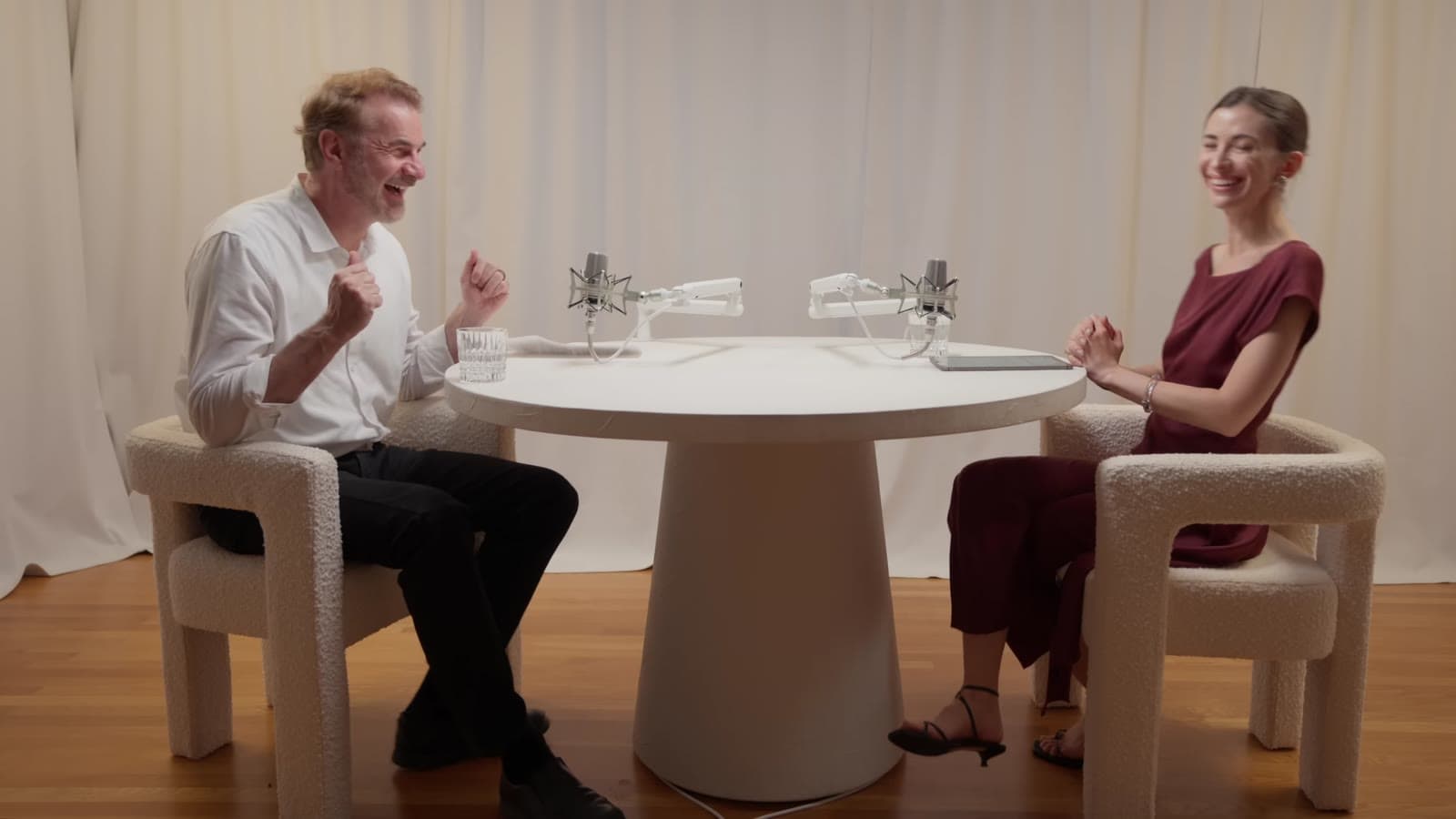
You don't need a studio. You need each person to be seen clearly and heard cleanly, and the rule that makes that easy is one camera angle and one mic per person:
| Cameras | Mics | Good to know | |
|---|---|---|---|
| Solo | One, at eye level. A recent phone or a good webcam is enough to start | One, close to your mouth | Frame from the chest up and look into the lens: you're talking to the viewer |
| Host and guest | One on each person, plus a wide of both if you can | One each, on separate tracks | Put each camera near the other person, so each close-up looks across the table rather than at the lens |
| Three or more | One per person or per pair, plus a wide | One each, into a recorder or audio interface with an input for every mic | Seat people so every camera sees one face clearly, with no one blocking anyone |
| Remote guests | Each person's own camera or webcam | Each person's own mic, with headphones | Everyone records locally; you sync the files after (see below) |
- Mics matter more than cameras. People forgive a soft picture but not bad sound. A mic close to each speaker, on its own track, lets you set each voice's level and cut around crosstalk in the edit.
- Match the cameras. Set every camera to the same resolution and frame rate, lock focus, exposure and white balance so they don't drift mid-episode, and check that each can record for the whole episode without stopping or overheating.
- Sync with a clap. One clap on camera at the start gives every camera and mic the same sharp spike to line up in the edit.
Light and a quiet room
Light and the room do more for how a podcast looks and sounds than the gear does:
- One soft light in front, a little above eye level and off to one side, for each face. Soft means big: a light through a diffuser, or bounced off a wall, rather than a bare bulb.
- A second, weaker light or a white surface on the other side fills the shadows, and a light behind people separates them from the background.
- No window behind anyone. The camera exposes for the bright window and the face goes dark. Daylight also changes over an hour, so curtains and your own lights are steadier.
- Soft rooms sound better. Bare walls and hard floors echo. Rugs, curtains, a sofa and full bookshelves soak it up, and a smaller furnished room beats a big empty one.
- Turn off the noise you stop hearing: air conditioning, fans, a fridge, notifications. A mic hears all of it.
Recording a video podcast remotely
Recording the video call itself gives you the call's quality: compressed, and frozen whenever someone's connection dips. The better approach is separate local recordings: you talk over the call, but each person's own computer records their camera and mic at full quality, and the files are gathered afterwards. Some recording services do this in the browser and upload each person's file as they go; you can also have each guest record themselves and send the files.
- Headphones for everyone, so the other voices don't leak into each mic as an echo.
- A wired connection, other apps closed, and the laptop plugged in, so the recording doesn't stop halfway.
- The clap still works: everyone claps together on a count at the start, and you line the recordings up on it.
- A quick test first: ten seconds recorded and played back catches a wrong mic, a dark room or a camera facing the ceiling.
Editing a video podcast
- Cut to whoever's talking. With a camera per person, switch to the speaker, and go to the wide shot for laughter and crosstalk. Most editors call this a multicam edit.
- Start on the first good line. Cut the setup and the small talk off the start in your editor, as part of the edit. For a short piece of the episode (a trailer, a teaser, one answer to share), the free video trimmer cuts out up to 10 minutes at a time and keeps the quality.
- Take out the long pauses, gently. The free remove silence from video tool cuts them for you, on up to 30 minutes at a time; in a conversation, use a long minimum silence so speakers don't seem to talk over each other. See how to remove silence from a video.
- Write show notes from the transcript. The free video to text converter transcribes up to 30 minutes at a time in your browser, with timestamps, so you can pull out the topics, names and links.
- Add chapters on YouTube. YouTube needs the first timestamp at 00:00, at least 3 in order, and each chapter 10 seconds or longer. The free YouTube timestamp generator lets you mark them while the episode plays or from a transcript made on your device, checks those rules, and gives you the list to paste into the description.
How to start a podcast on YouTube, Spotify and Apple Podcasts
On YouTube, a podcast is a playlist and each episode is a video in it. In YouTube Studio, choose Create, then New podcast, and give it a title, a description, a visibility and a square thumbnail. Then upload episodes into it. YouTube asks for full episodes only, in order, with no clips mixed in, and the show's own name as the podcast's title. Episodes longer than 15 minutes need a verified account.
On Spotify, upload video episodes in Spotify for Creators, on the web: MOV, MPG or MP4, up to 12 hours, ideally 16:9 H.264. The video plays on Spotify only; your RSS feed carries the audio to every other app. Already hosted elsewhere? Some hosts, among them Buzzsprout, Libsyn and Audioboom, can send your video to Spotify for you.
| How | Who sees the video | Good to know | |
|---|---|---|---|
| YouTube | YouTube Studio: Create, New podcast, then upload episodes to it | YouTube and YouTube Music | In some countries an RSS feed works too, but YouTube turns it into still-image videos of your show art, so upload the video itself |
| Spotify | Spotify for Creators (MOV, MPG or MP4, up to 12 hours), or a host that sends video to Spotify | Spotify only | Its Partner Program asks for 3 episodes, 1,000 audience members and 2,000 hours in 30 days |
| Apple Podcasts | A hosting provider that supports Apple's HLS video, or a separate video RSS feed (MOV, MP4 or M4V) | Apple Podcasts | With HLS, listeners switch between video and audio in the same show |
| Other podcast apps | Your host's RSS feed | Audio only | The same feed you'd use for an audio podcast |
Earning on Spotify. The Spotify Partner Program is open to shows hosted on Spotify for Creators, with a legal address in an eligible market, at least 3 published episodes, and at least 2,000 consumption hours and 1,000 audience members on Spotify in the last 30 days. Members earn 50% of the revenue from ads Spotify sells into their episodes, and Premium video revenue when Premium subscribers watch. An episode needs at least one ad break to earn either. It's open in the US, Canada, the UK, Australia, New Zealand and much of western and northern Europe, with Italy, Spain, Poland, Brazil, Mexico and more from October 20, 2026. To stay in, a show must publish an episode and earn at least $10 in any 6-month period. On YouTube, a podcast earns from ads like any channel once it's in the Partner Program: see how to get monetized on YouTube.
Growing a video podcast with clips
An episode reaches people who already follow the show. A clip reaches people who don't: TikTok, Reels and Shorts show clips by what people watch, not who they follow, so forty seconds of a great answer can put the show in front of strangers every day. The full plan is in how to grow a podcast with clips; the short version:
- Post a clip a day from each episode: the best story, the strongest take, the funniest moment. An hour usually has more than a week's worth. How to clip a podcast covers which moments work.
- Point each clip at the episode. On YouTube, link each Short to the full episode, and name the show in every caption. Keep clips out of the podcast playlist itself.
- Add one to Spotify. Spotify for Creators takes one clip per episode, 15 to 90 seconds, and may show it in its Home and Podcast feeds. Spotify recommends vertical video and captions.
- Audio-only episodes? Turn the moments into audiograms with the free audiogram maker: your cover art, a moving waveform and captions.
By hand, a week of clips means watching the episode again for the moments, cutting each one, reframing two or three people into a vertical frame and captioning every word. That's the part Clyper does. Paste the episode's YouTube link or upload the video, and it reads the transcript to pick the moments that stand on their own, cuts each on whole sentences, frames whoever's talking and switches as the speaker changes, and captions every word in one of 5 styles. It makes as many clips as you ask for: up to 30 from an hour-long episode, as 1080 × 1920 MP4s with no watermark. More in podcast clips with Clyper, and for episodes recorded on Riverside or StreamYard, how to get the file out.
Questions
What equipment do I need to start a video podcast?
A camera and a mic for each person, one soft light per face and a quiet room. A recent phone or a good webcam and a mic close to your mouth are enough for a solo show; add cameras and mics as you add people.
How many cameras do you need for a video podcast?
One per person is the usual setup, so you can cut to whoever's talking, plus a wide shot of everyone if you can. A single wide camera works to start, and it still crops to a vertical clip of each speaker.
How do you record a video podcast remotely?
Talk over a call, but have each person's computer record their own camera and mic at full quality, then line the files up in the edit. Everyone wears headphones, and a clap at the start gives you a point to sync on.
How do I start a podcast on YouTube?
In YouTube Studio, choose Create, then New podcast, and add a title, a description, a visibility and a square thumbnail. Then upload full episodes to it: on YouTube, a podcast is a playlist of episode videos.
Can I put a video podcast on Spotify?
Yes. Upload video episodes in Spotify for Creators (MOV, MPG or MP4, up to 12 hours), or through a host that sends video to Spotify. The video plays only on Spotify; other apps get the audio from your RSS feed.
How do I grow a video podcast?
With clips: cut each episode's best moments into vertical, captioned clips, post one a day on TikTok, Reels and Shorts, and point each back to the full episode. Clyper makes them from the episode's YouTube link.
Sources
The apps' rules are from their own pages, read on October 20, 2026. They change from time to time, so check them before you rely on one.
- YouTube Help: create a podcast in YouTube Studio
- YouTube Help: podcast discovery tips
- YouTube Help: deliver podcasts using an RSS feed
- YouTube Help: distribute podcasts on YouTube
- YouTube Help: video chapters
- YouTube Help: upload videos longer than 15 minutes
- YouTube Official Blog: 1 billion monthly podcast users (February 26, 2025)
- YouTube Official Blog: how podcasts took over the living room in 2025 (December 18, 2025)
- Spotify for Creators: publishing videos
- Spotify for Creators: publishing video episodes if you're not hosted with Spotify
- Spotify for Creators: Spotify Partner Program
- Spotify for Creators: Clips
- Spotify Newsroom: making it easier for video podcasters to earn (January 7, 2026)
- Spotify Newsroom: new podcast features for fans and creators (May 21, 2026)
- Spotify Newsroom: the Partner Program expands to more than 35 new markets (September 17, 2026)
- Apple Podcasts for Creators: how to publish video
- Apple Podcasts for Creators: video podcasts using RSS